

Why the WordPress plugin is the recommended setup. The plugin sends form submissions server-to-server, which means:
- 100% of submissions are tracked reliably
- Tracking is not blocked by adblockers, ITP, or browser limitations
- No client-side script is needed to deliver the submission itself (enabling Channel Flow adds a small first-party script for attribution)
- GravityForms
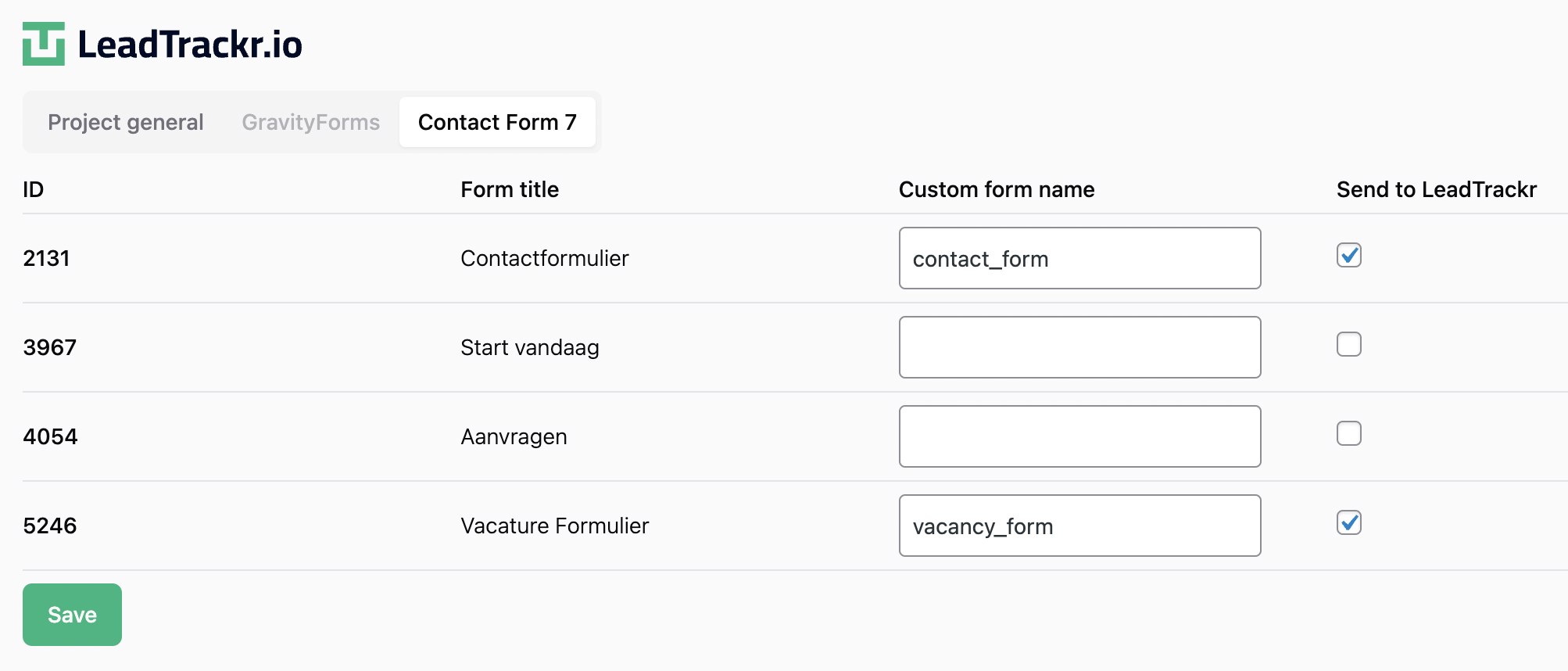
- ContactForm 7
- Elementor
- WPForms
- Divi forms
Is your form plugin not supported yet? Let us know at support@leadtrackr.io, we’d love to hear from you and may add it to our roadmap!
Step 1: Install the LeadTrackr Plugin
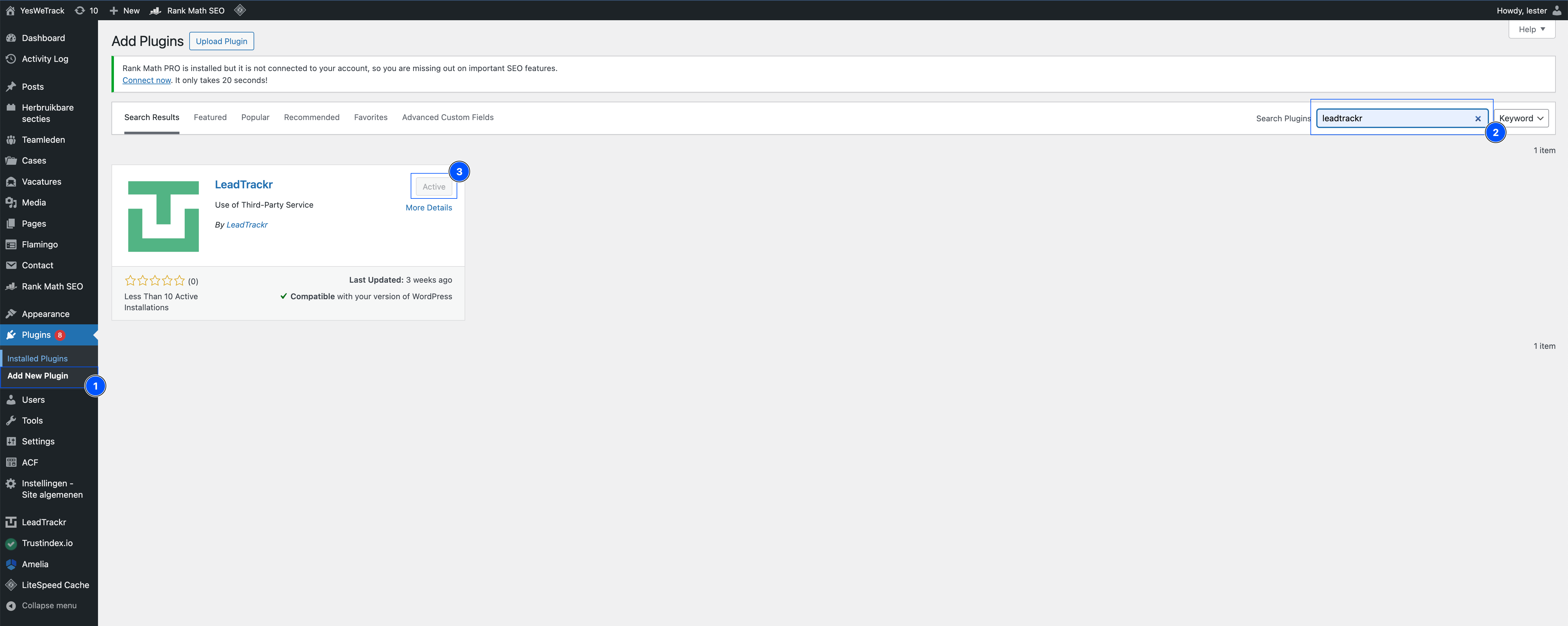
- In your WordPress dashboard, go to Plugins
- Click Add New Plugin
- Search for LeadTrackr
- Click Install Now
- Then click Activate
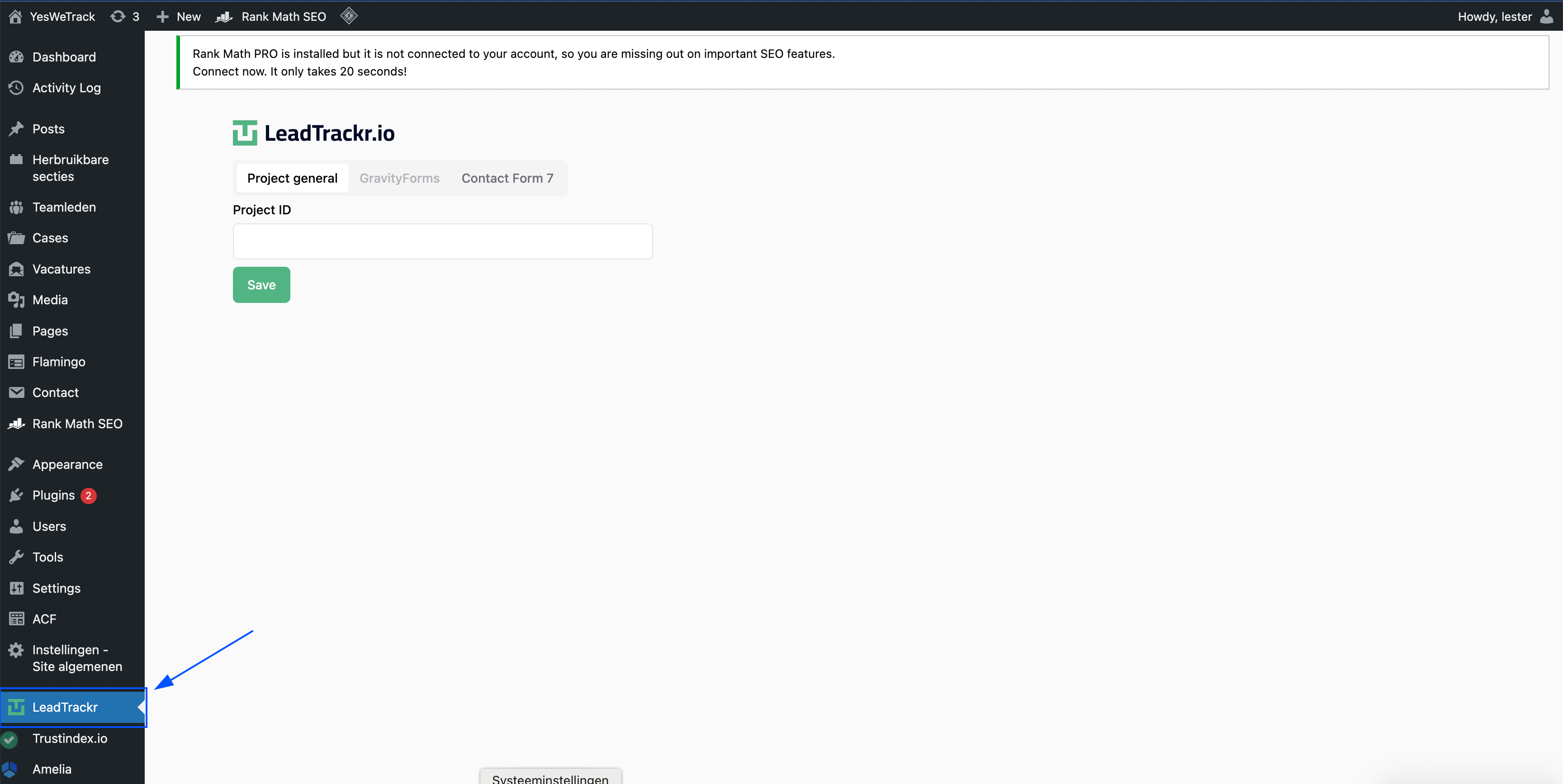
Step 2: Connect Your Project
To connect your WordPress site to your LeadTrackr account:- Go to app.leadtrackr.io/dashboard/projects
- Open the project you want to connect
- In the URL of the page, you’ll find your Project ID
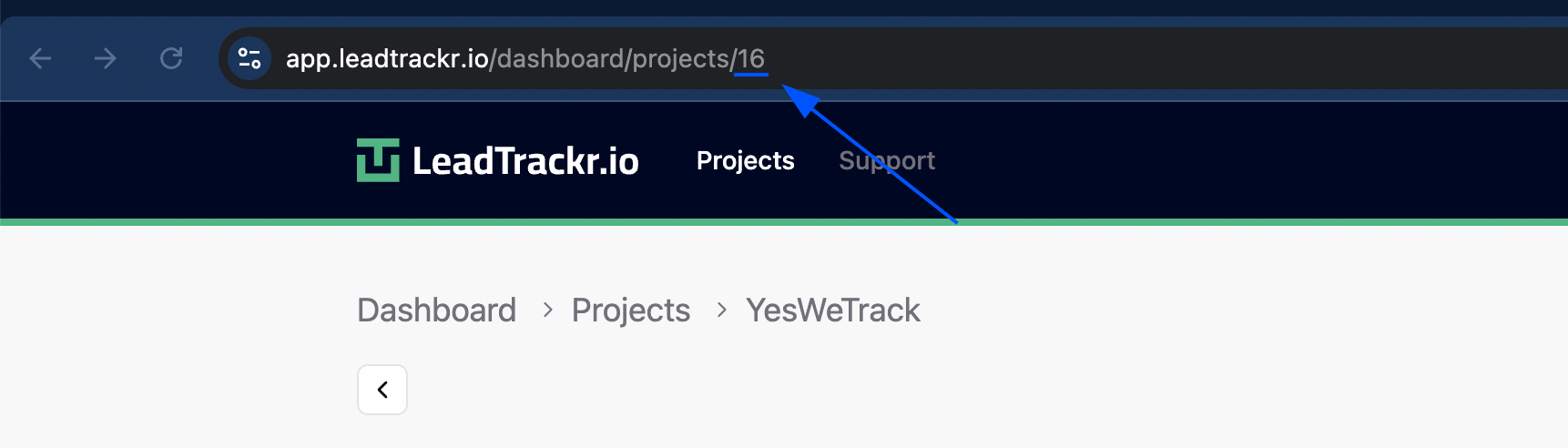
https://app.leadtrackr.io/projects/16, your project ID is 16.
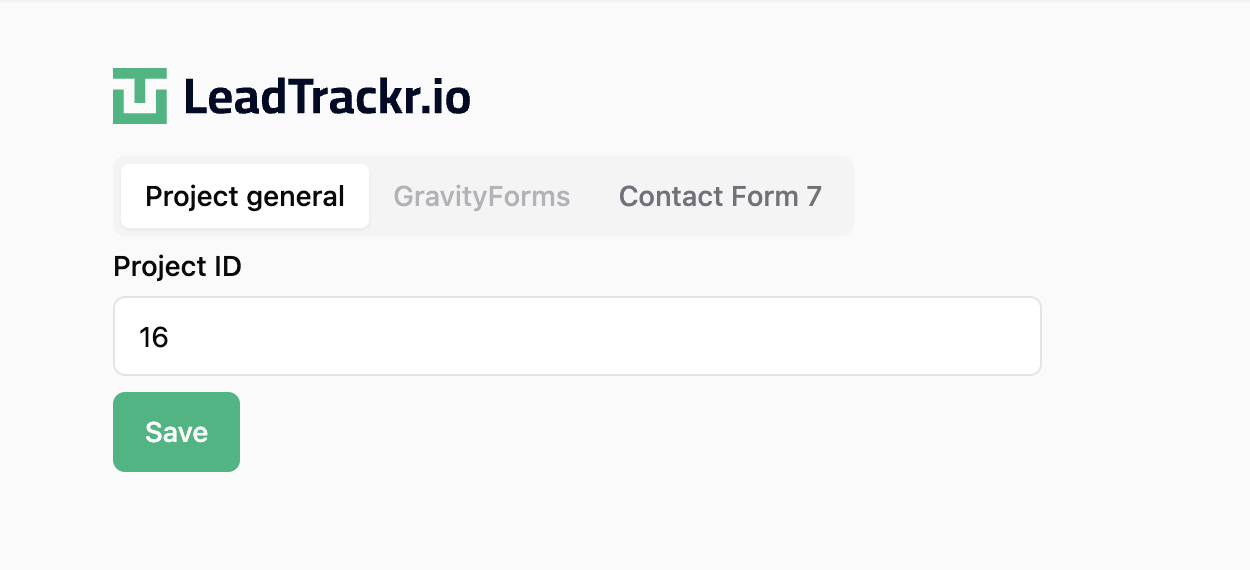
Enter this number in the Project ID field in the plugin settings and hit Save.
Step 3: Select Your Form Provider
LeadTrackr automatically detects which supported form plugins are installed on your WordPress site. In the plugin settings:- Select your form provider (e.g. Contact Form 7, Elementor, etc.)
- Navigate to the provider tab in the plugin
Step 4: Enable Tracking for Your Forms
For each form you want to track:- Give the form a recognizable name
- Enable tracking by checking the box
- Click Save
Cookies the Plugin Writes
The plugin only writes cookies once you enable Channel Flow. Without it, no cookies are set at all. With Channel Flow on, it writes four first-party cookies on your own domain:lt_channelflow and lt_session for the channel journey, lt_consent to send the visitor’s consent status along with the lead, and lt_probe, a technical check that is deleted in the same instant it is written.
Cookies Used by LeadTrackr
What each cookie is for, how long it lives and how to classify it in your cookie policy
What’s Next?
Nice work, your forms are now connected to LeadTrackr! Next, set up the Channel Flow Tracker to capture the full user journey (UTM parameters, landing pages, referrers) alongside your form submissions. The plugin can do this itself — it is a switch under LeadTrackr → General → Channel Flow — so you only need Google Tag Manager for it if you already run a container. Then connect your conversion destinations to start sending offline conversions.Set Up Channel Flow Tracker
Track the full user journey with UTM parameters
Set Up Google Ads Conversions
Send offline conversions to Google Ads
Set Up Meta Integration
Send offline conversions to Meta (Facebook)
Set Up GA4 Integration
Send offline conversions to Google Analytics 4