

Two Ways to Set This Up
Channel Flow runs either as a tag in Google Tag Manager or straight from the LeadTrackr WordPress plugin. Both routes write the same two channel cookies in the same format and follow the same logic, so the attribution you end up with is identical. Pick one:- Your site already uses GTM — use the tag. It also covers pages that are not WordPress (a campaign landing page on another platform, a booking subdomain), and it is the only route with a configurable session timeout.
- There is no GTM on the site — use the plugin. One switch in wp-admin, no container to publish and no second tool to keep in sync.
Google Tag Manager
Add the Channel Flow Tracker tag to your container
WordPress Plugin
Turn Channel Flow on in the LeadTrackr plugin settings
There is no reason to run both. A site that happens to have both active stays consistent, since the two implementations write identical channel cookies — but you gain nothing and you get two places to check whenever attribution looks wrong.
Set Up with Google Tag Manager
Step 1: Add the LeadTrackr Tag to Your GTM Container
- Go to your container in Tag Manager
- Click Templates → Search Gallery
- Look for LeadTrackr tag
- Click Add to Workspace
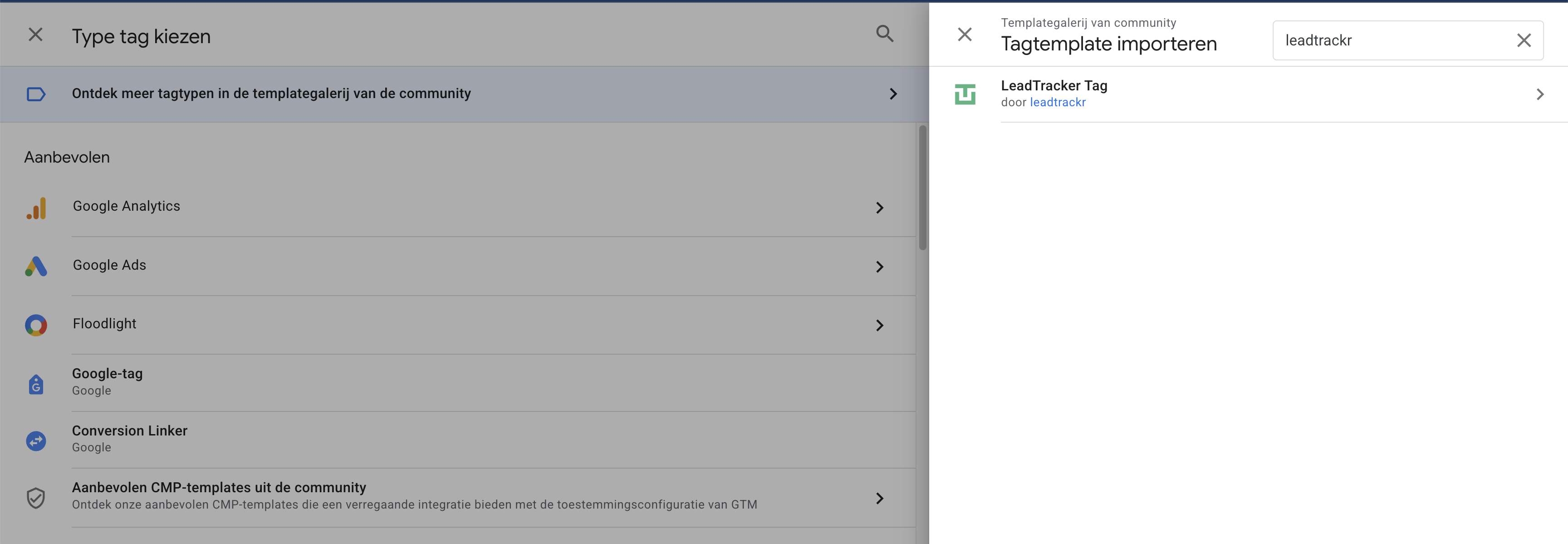
Step 2: Create a New LeadTrackr Tag
- Go to Tags and click New
- Select LeadTrackr Tag as the tag type
- Choose Channel Flow Tracker as the tag type
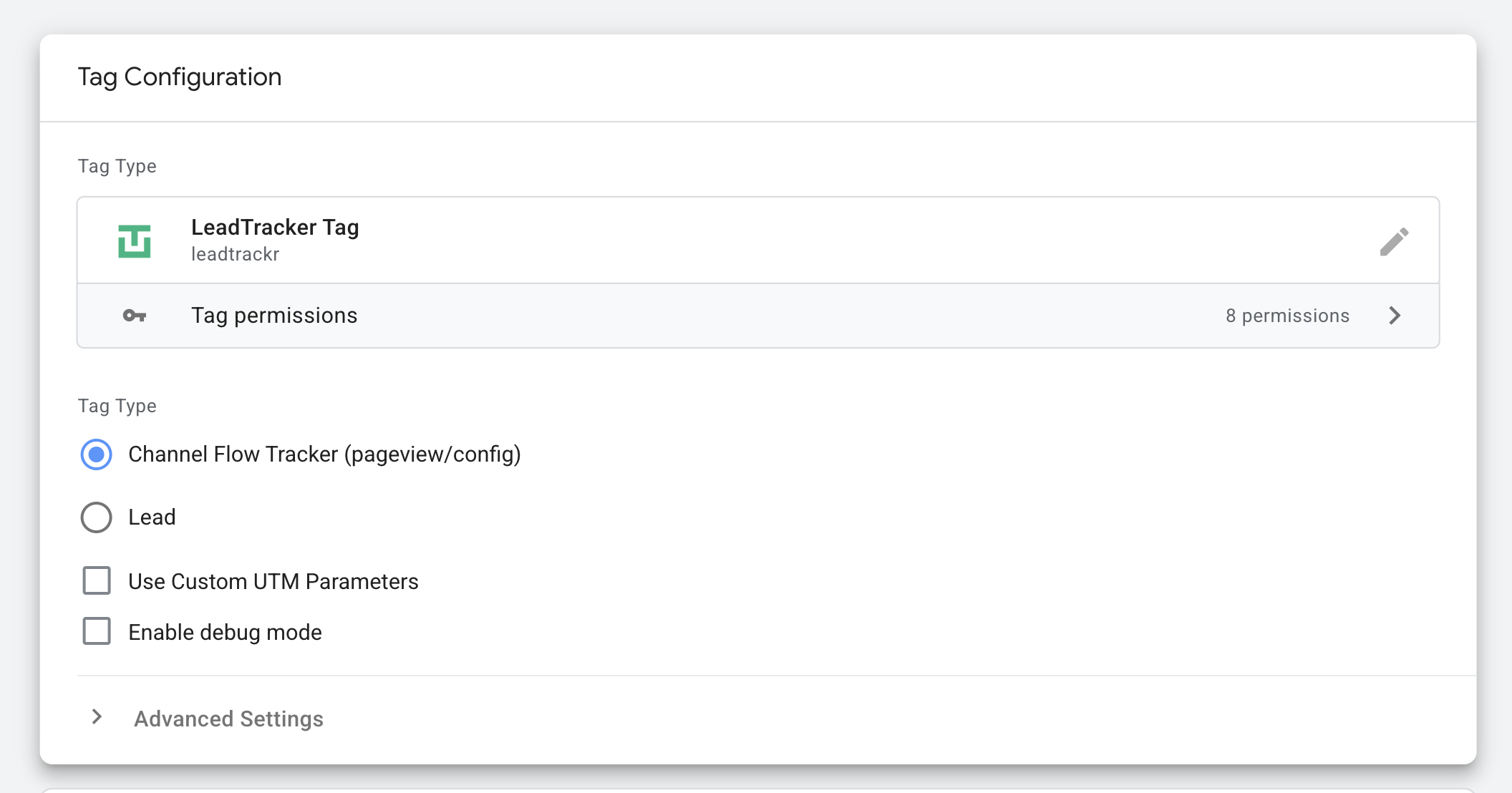
Optional settings
Step 3: Add a Trigger
Attach an All Pages trigger to the LeadTrackr tag. This ensures the Channel Flow Tracker can capture UTM parameters and build the full user journey before a lead is submitted.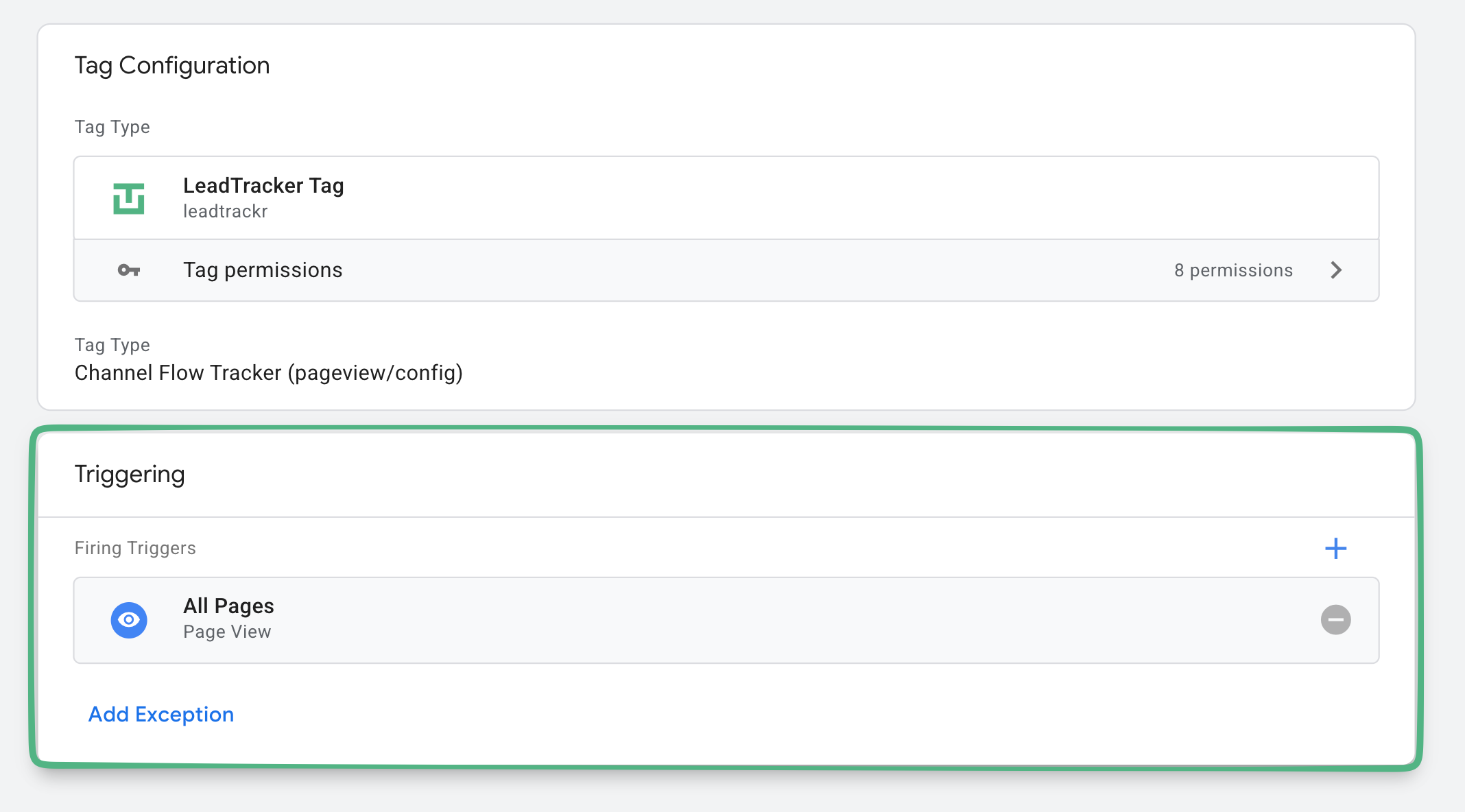
Step 4: Publish Your Container
Once your tag and trigger are configured, publish your GTM container. Your channel flow tracking is now active and will be included automatically in new lead entries.Set Up with the WordPress Plugin
The LeadTrackr plugin ships Channel Flow itself. It does not need the GTM tag, and it does not load anything from a CDN — the script is served as a first-party file from your own site, so there is no extra domain to allow in a consent banner or a content security policy.Step 1: Install and Connect the Plugin
Channel Flow lives inside the plugin you already use for your forms, so there is nothing extra to install. If LeadTrackr is not on the site yet, work through Connect WordPress Forms as a Lead Source first: the plugin has to be activated and connected to your project ID before Channel Flow has anywhere to send its data.Step 2: Switch Channel Flow On
- In your WordPress dashboard, go to LeadTrackr → General
- Open the Channel Flow section
- Turn on Enable Channel Flow tracking
- Click Save
Step 3: Custom UTM Parameter Names (Optional)
If your campaigns use parameter names of your own instead of the standard UTMs, open Use custom UTM parameter names and fill in the five fields, one per parameter. Leave the section alone if you useutm_source and friends — that is what every ad platform generates by default.
The WordPress route has no session timeout setting. It uses the 30-minute default, the same value GA4 uses and the same default the GTM tag ships with. If you need a different window, use the GTM route.
Enable UTM Tracking in Your Ad Platforms
Whichever route you set up, the quality of your channel flow depends on what your ads put in the URL. To get accurate source/medium/channel data in LeadTrackr, make sure UTM parameters are added to your ads. Channel Flow saves the following parameters:utm_sourceutm_mediumutm_campaignutm_contentutm_term
How ChannelFlow Records Sessions
Every entry in a channel path represents one session, not one pageview. Browsing five pages in a row produces a single entry, so the path stays readable no matter how much someone clicks around. A new session starts when either of these happens:- The visitor has been inactive. No pageview for longer than the session timeout, 30 minutes by default. Coming back the next day therefore starts a new session, even if they arrive through the same channel as before.
- A new campaign brings them in. UTM parameters or an ad click ID that resolve to a different channel than the last entry. Reloading the same landing page does not add an entry, because the channel has not changed.
How the channel is determined
The first rule that matches wins:Two details worth knowing when a result surprises you.An ad click ID only counts when it is in the URL of that visit and the visitor did not arrive from your own site. Google Consent Mode can append the click ID to internal links when a visitor declines consent, and those are carried over rather than new clicks.A visitor who returns after the session timeout through a link on your own site is recorded as
direct / none, because there is no external source to attribute the visit to. Google Analytics 4 treats this the same way.Cookies Used by ChannelFlow
ChannelFlow builds the channel journey in two first-party cookies on your own domain:
Neither cookie contains personal information or a unique visitor identifier, and neither is used for advertising, profiling or cross-site tracking. The channel path is only read when a visitor becomes a lead.
Cookies Used by LeadTrackr
The full overview for your cookie policy, including the two extra cookies the WordPress plugin writes and how to classify them
What’s Next?
Now that your channel flow tracking is active, connect your conversion destinations to start sending qualified leads to your ad platforms.Set Up Google Ads Conversions
Send offline conversions to Google Ads
Set Up Meta Integration
Send offline conversions to Meta (Facebook)
Set Up GA4 Integration
Send offline conversions to Google Analytics 4
Set Up Conversion Labels
Link lead statuses to conversion events