

Before You Begin — Make sure you’ve already set up your integrations with the platforms where you want to send offline conversions:
Step 1: Go to the Conversion Labels Tab
- Open your project in LeadTrackr
- Go to Project Settings
- Go to the Conversion Labels tab in the menu
Step 2: Create a New Conversion Label
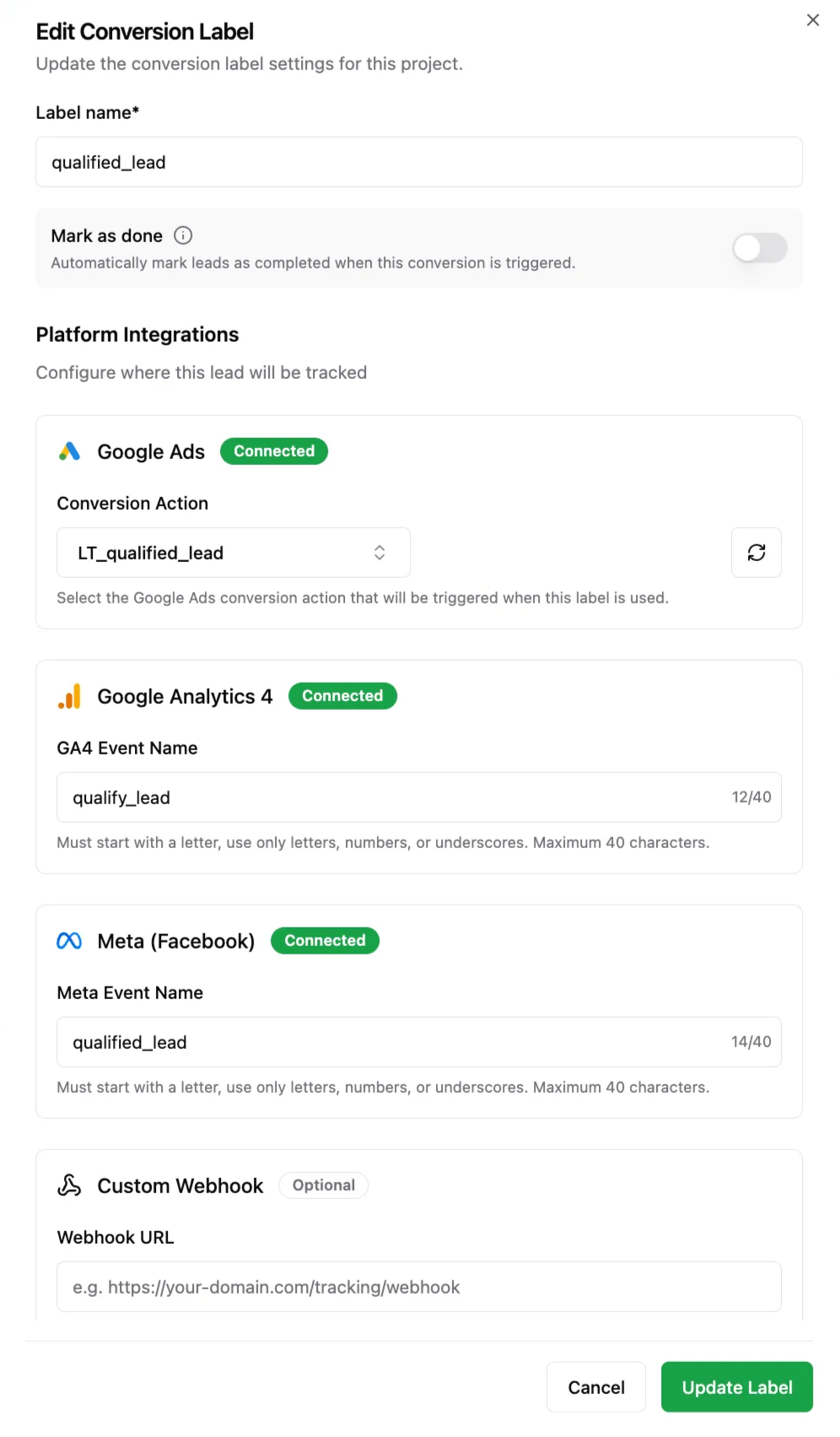
Click Create Label and fill in the following:- Label name — choose a clear name like “Qualified Lead”, “Appointment”, or “New Client”
-
Mark as Done:
- If enabled: lead goes to the Rated tab after processing
- If disabled: lead can be qualified again later (e.g. for multi-step conversions)
-
Ad platform conversion — link this label to the matching event in:
- Google Ads (Create an Offline Conversion Action)
- Meta Ads (using Event Name)
- Google Analytics 4 (using GA4 event name)
You’re Ready to Track Real Conversions
Once your labels are set up and linked to the right integrations, you can start:- Rating leads using these labels
- The real offline conversions will be sent back to your ad platforms
- And you can start optimizing campaigns based on actual lead quality