

Step 1: Add the LeadTrackr Tag to Your GTM Container
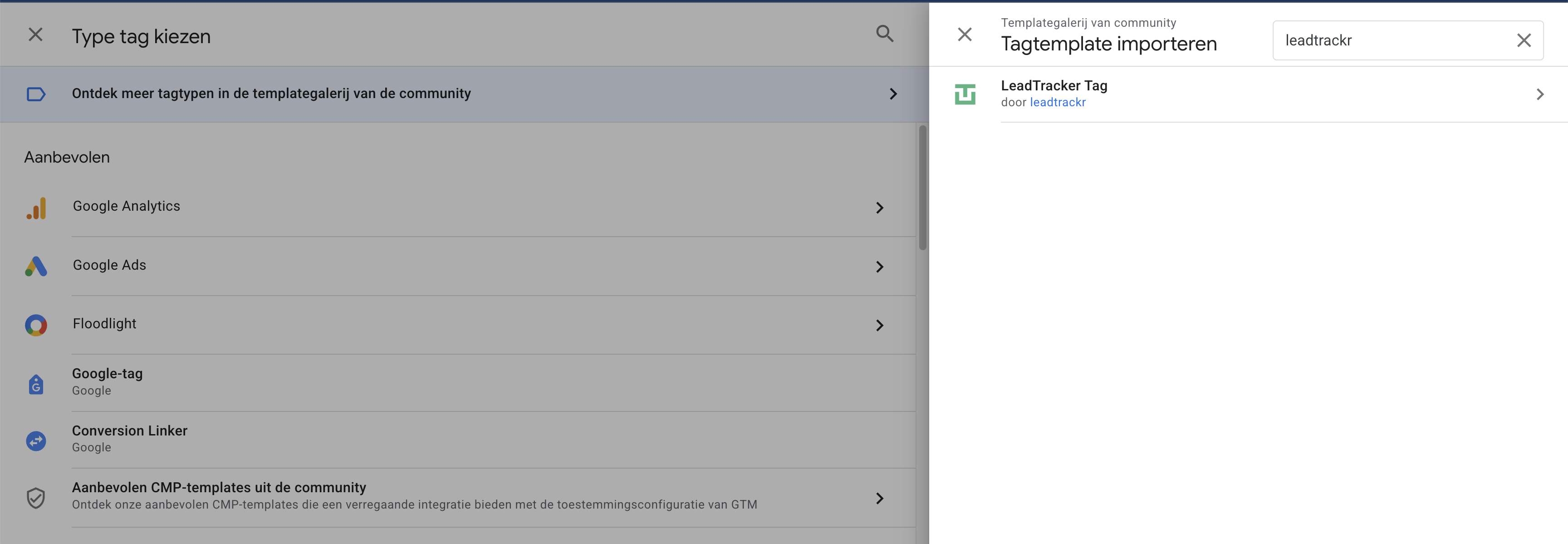
- Go to your container in Tag Manager
- Click Templates → Search Gallery
- Look for LeadTrackr tag
- Click Add to Workspace
Step 2: Create a New LeadTrackr Tag
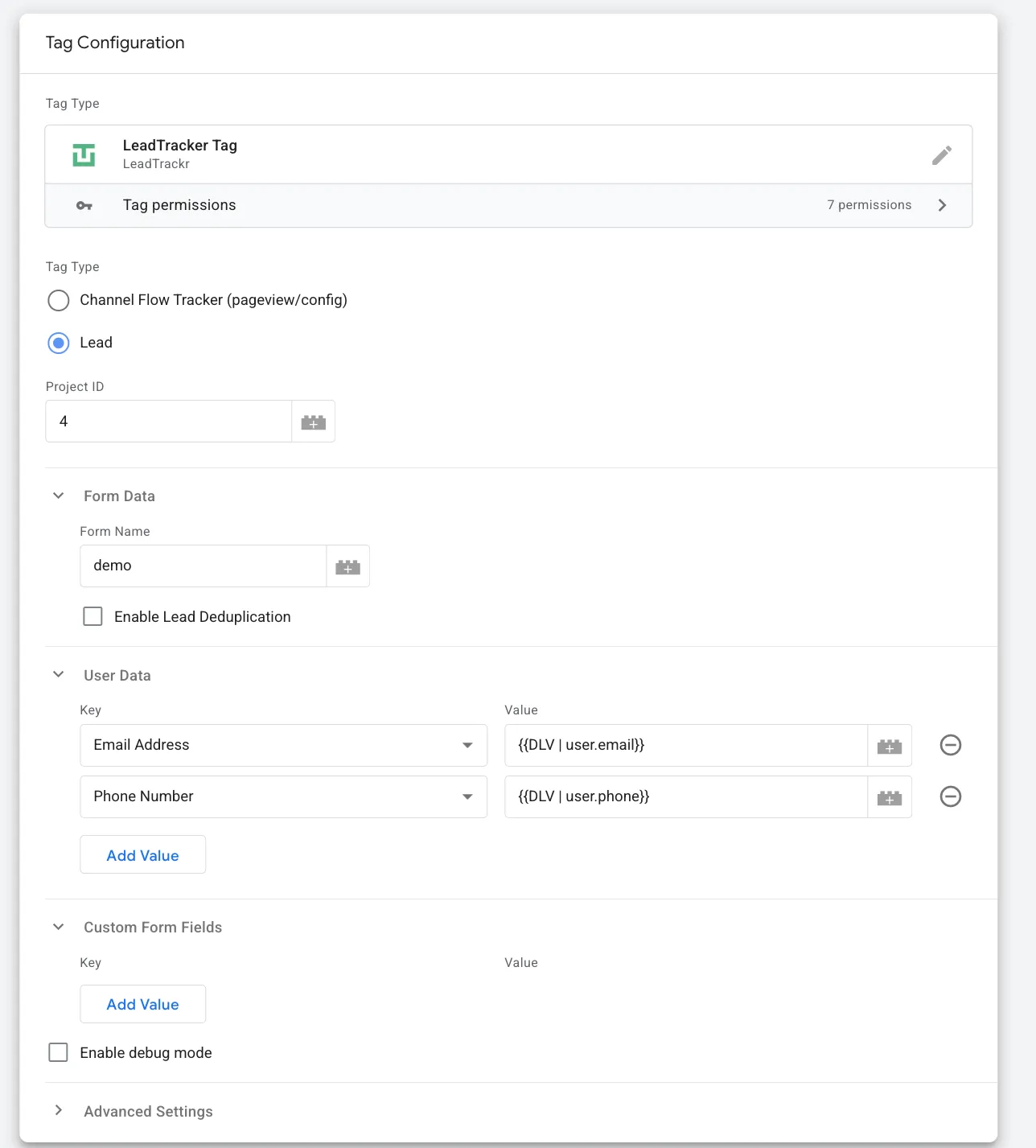
- Go to Tags and click New
- Select LeadTrackr Tag as the tag type
- Choose Lead as the tag type
- Fill in the required fields:
- Project ID
- Form name (descriptive label)
- Any custom form fields or user data fields you want to pass along (e.g. email, phone, message)
If you use server-side tagging, we recommend sending requests both client and server side and adding a unique ID for deduplication.
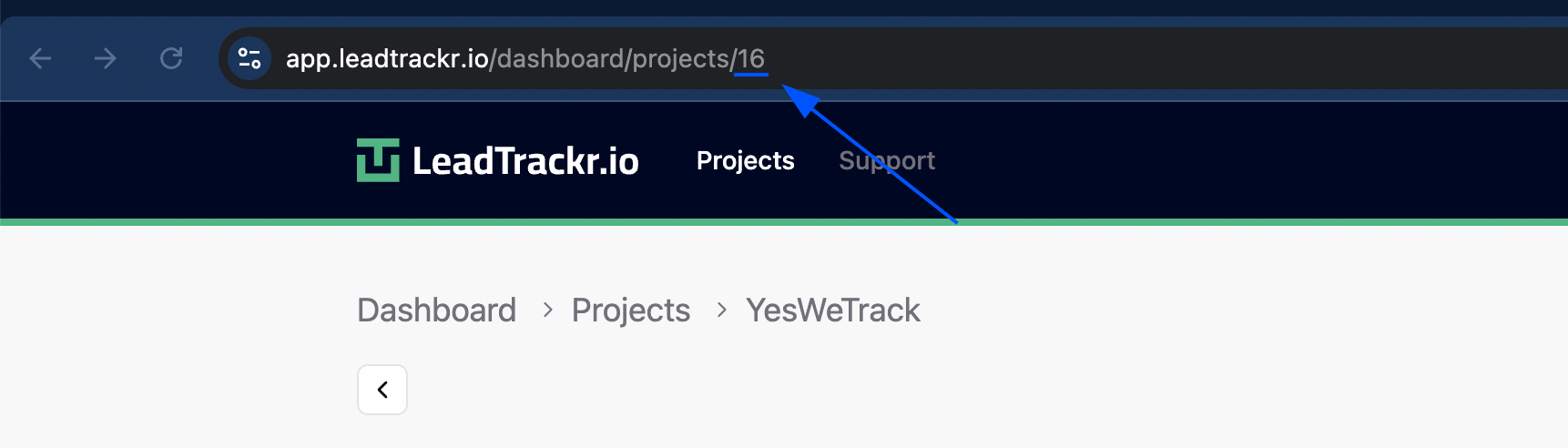
Where to Find Your Project ID
- Go to app.leadtrackr.io/dashboard/projects
- Open the project you want to connect
- Your Project ID is visible in the URL
- Example:
https://app.leadtrackr.io/projects/16→ project ID =16
- Example:
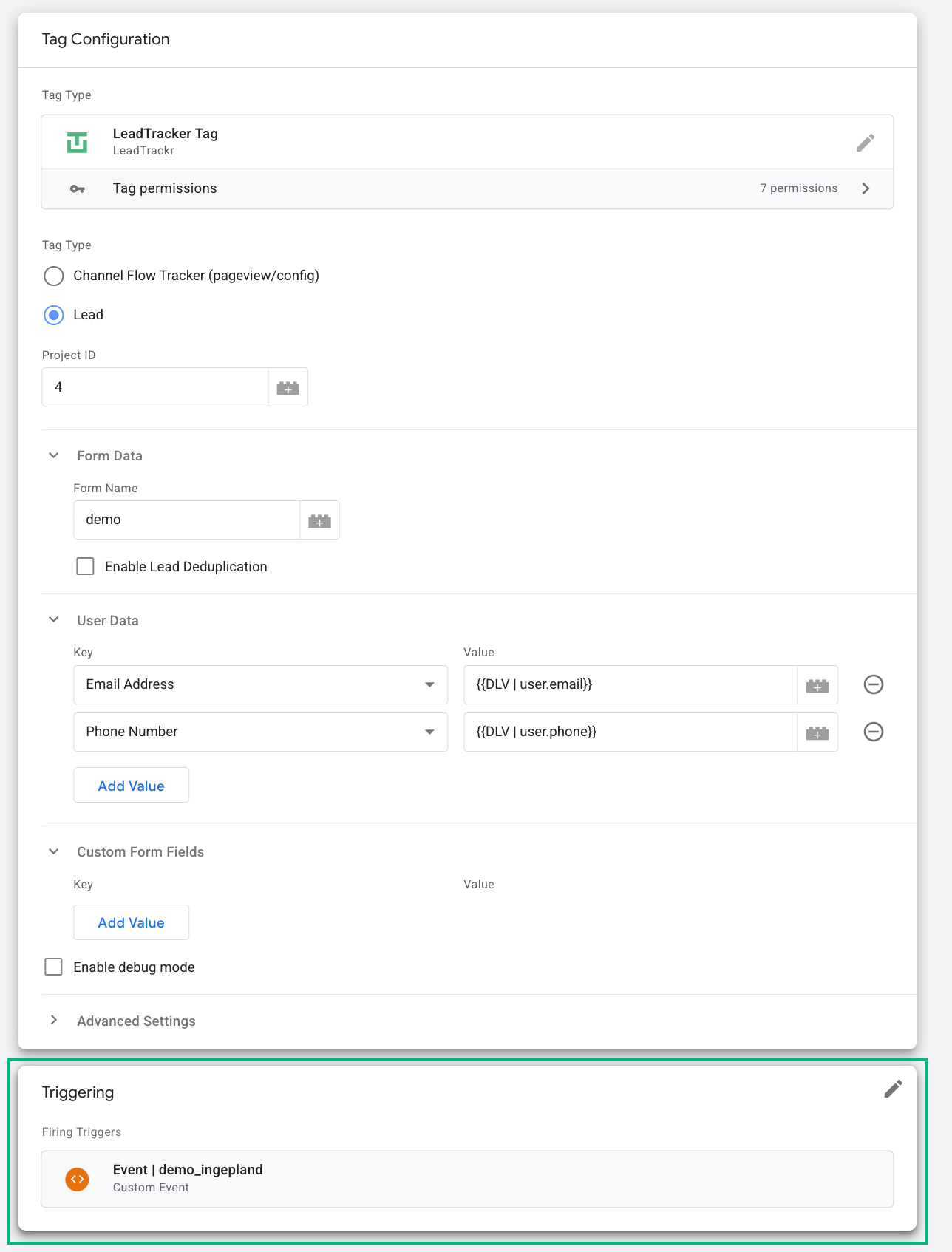
Step 3: Add a Trigger
Attach a trigger that sends the lead event from the browser client to your server container. This is typically a custom event, such asform_submission, or an incoming HTTP request handled by your sGTM client.
Step 4: Publish Your Container
Once your tag and trigger are configured, publish your GTM container. Your form submissions are now sent to LeadTrackr, ready to be rated, qualified, and pushed to ad platforms as offline conversions.Other Lead Source Options
WordPress Forms (Recommended)
Use the WordPress plugin for server-to-server tracking
Server-side GTM
Use the Leads API tag in server-side GTM
What’s Next?
With your lead source active, set up the Channel Flow Tracker and connect your conversion destinations.Set Up Channel Flow Tracker
Track the full user journey with UTM parameters
Set Up Google Ads Conversions
Send offline conversions to Google Ads
Set Up Meta Integration
Send offline conversions to Meta (Facebook)
Set Up GA4 Integration
Send offline conversions to Google Analytics 4