

Inside a Project: The 3 Lead Tabs
When you open a project in LeadTrackr, you’ll see three tabs:- Open — New leads ready for qualification
- Rated — Leads you’ve qualified and marked as done
- Pending — Leads ready to be sent as offline conversions
Step 1: Rate Your Leads (Open Tab)
In the Open tab, you’ll see all incoming leads that are ready to be qualified.- Select a lead.
- Rate the lead using the conversion labels you’ve set up.
- Repeat for all leads you want to process.
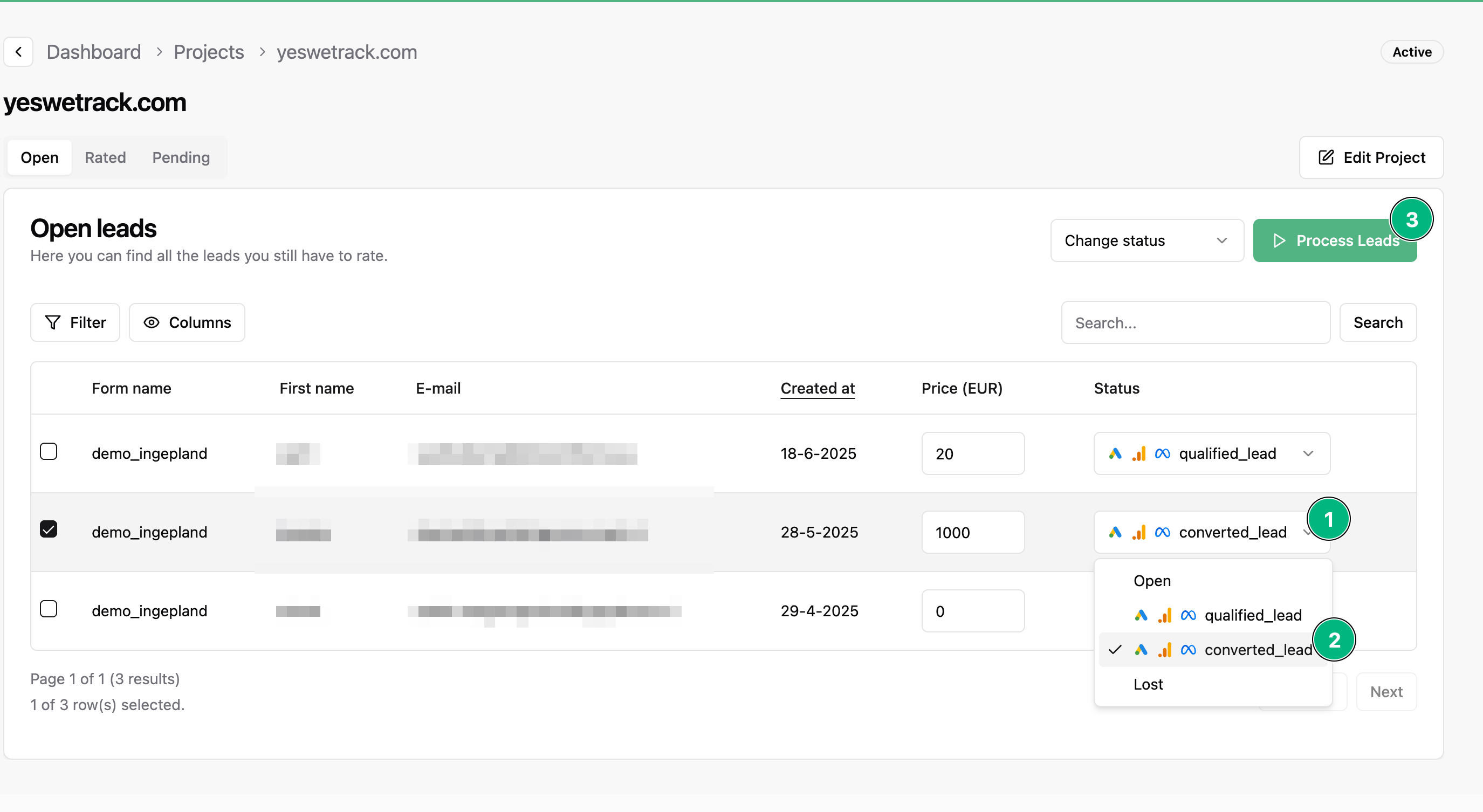
Step 2: Process Your Rated Leads
Once you’ve finished rating, click Process Leads. This will:- Move the leads to the Pending tab
- Prepare them to be sent as offline conversions to connected platforms like Google Ads or Meta
Step 3: Send Offline Conversions (Pending Tab)
Leads in the Pending tab are now going to be pushed to your ad platforms (this can take up to 1 day). What happens next depends on your conversion label settings:Mark as Done = Enabled
- The lead moves to the Rated tab
- It won’t appear in your Open tab again
- Offline conversion is sent just once
Mark as Done = Disabled
- The lead goes back to the Open tab
- It keeps the status you gave it earlier
- You can re-qualify the lead again (e.g. for a follow-up conversion)
Example Flow
1
Lead fills in form
Appears in the Open tab
2
You rate the lead
Click Process Leads
3
Lead moves to Pending
Gets sent as offline conversion
4
Lead is processed
Based on settings, lead goes to Rated (or comes back to Open)