

- Connect your Google account
- Select your Google Ads account
- Create one or more offline conversion actions in Google Ads
- Link those conversions to your conversion labels in LeadTrackr
Step 1: Connect Your Google Account
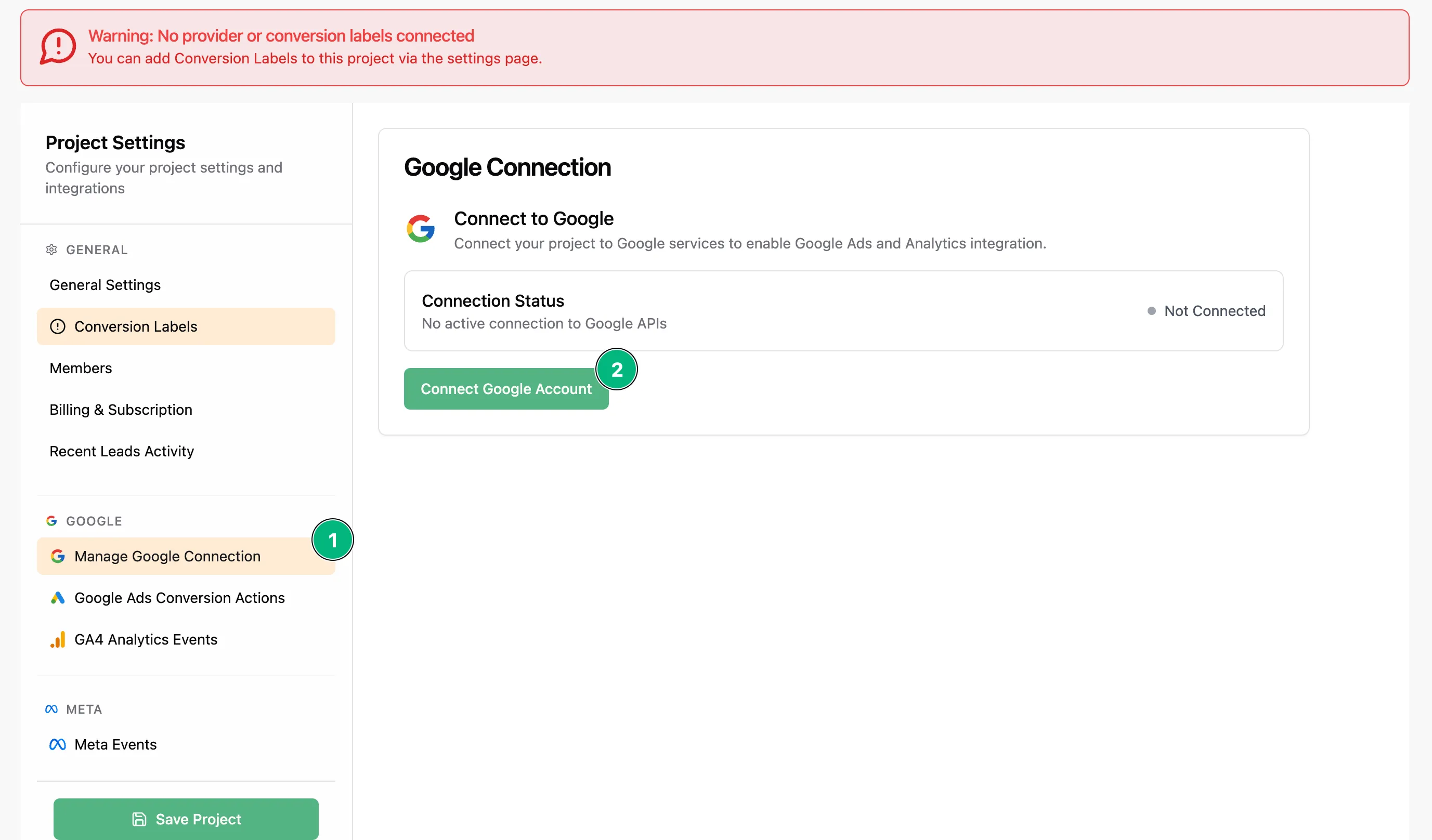
Start by connecting your Google account inside LeadTrackr:- Go to your Project Settings
- Click on Manage Google Connection
- Click Connect Google Account
- Follow the prompts to authorize your account
Make sure this Google account has access to your Google Ads account.
Step 2: Select Your Google Ads Account
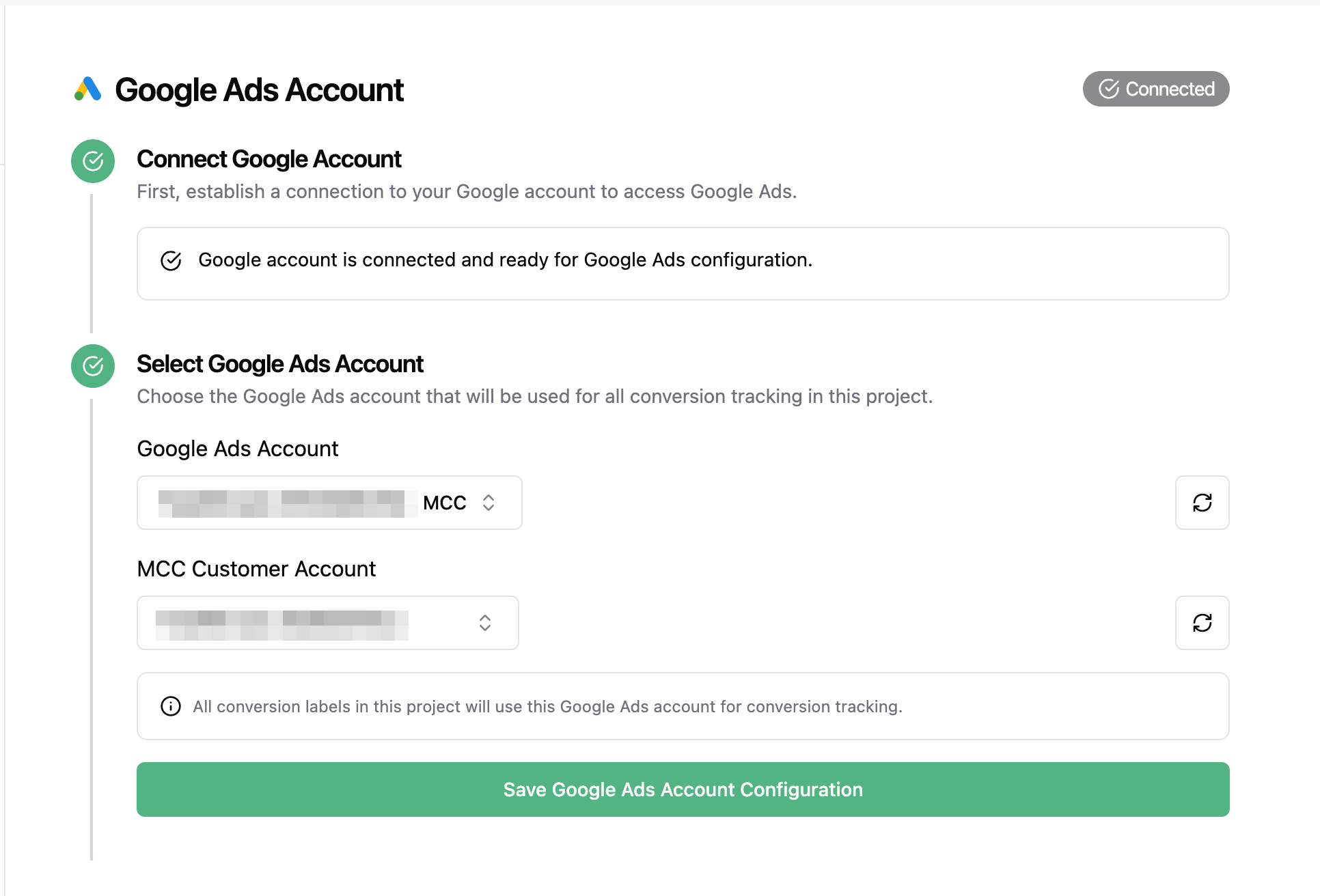
Once connected, go to the Google Ads Integration tab.- Choose the Google Ads account you want to use
Step 3: Create an Offline Conversion Action in Google Ads
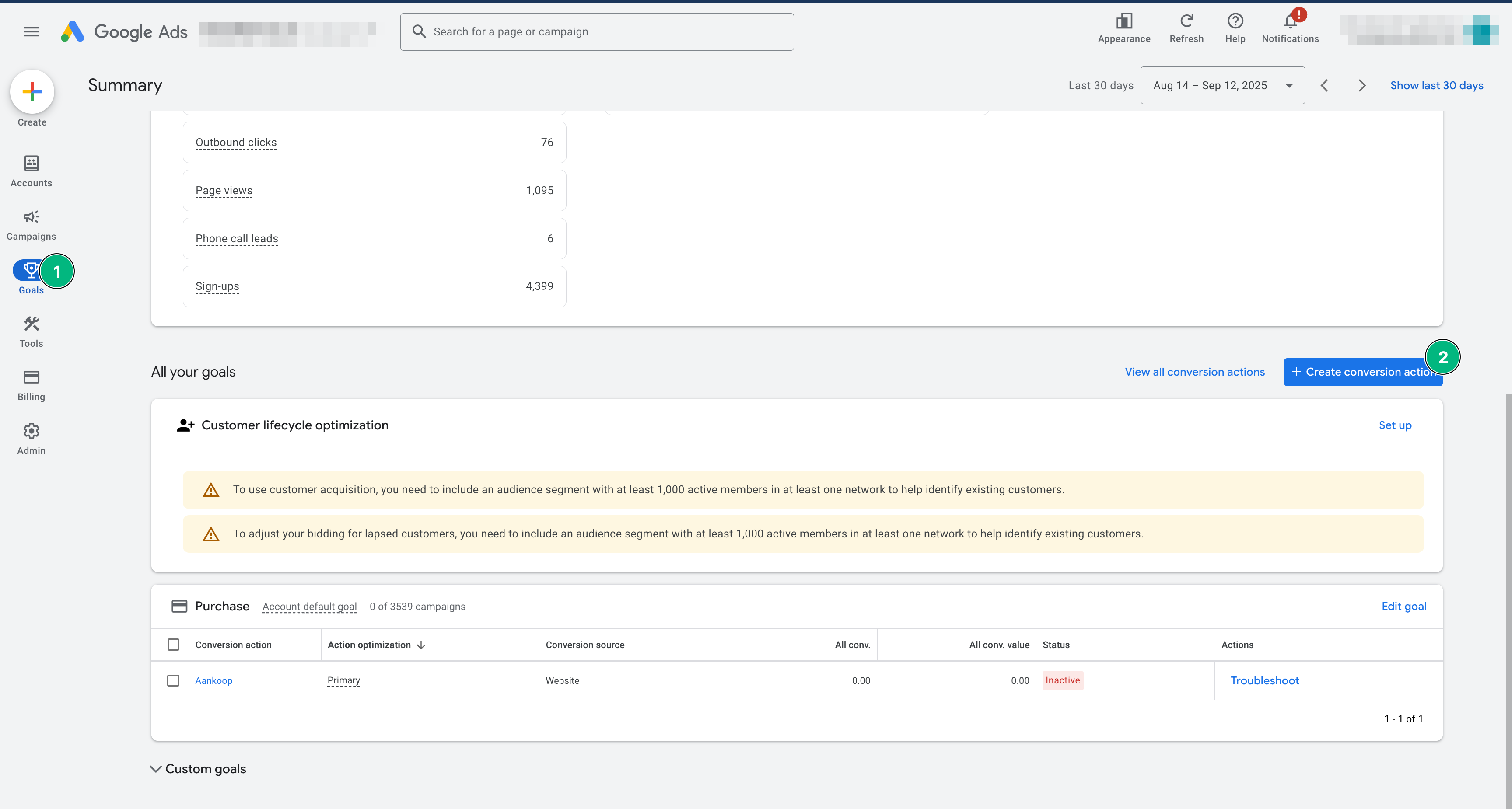
Next, set up a new conversion action inside your Google Ads account:- Open your Google Ads account
- Navigate to: Tools & Settings → Goals → Summary
- Click + New Conversion Action
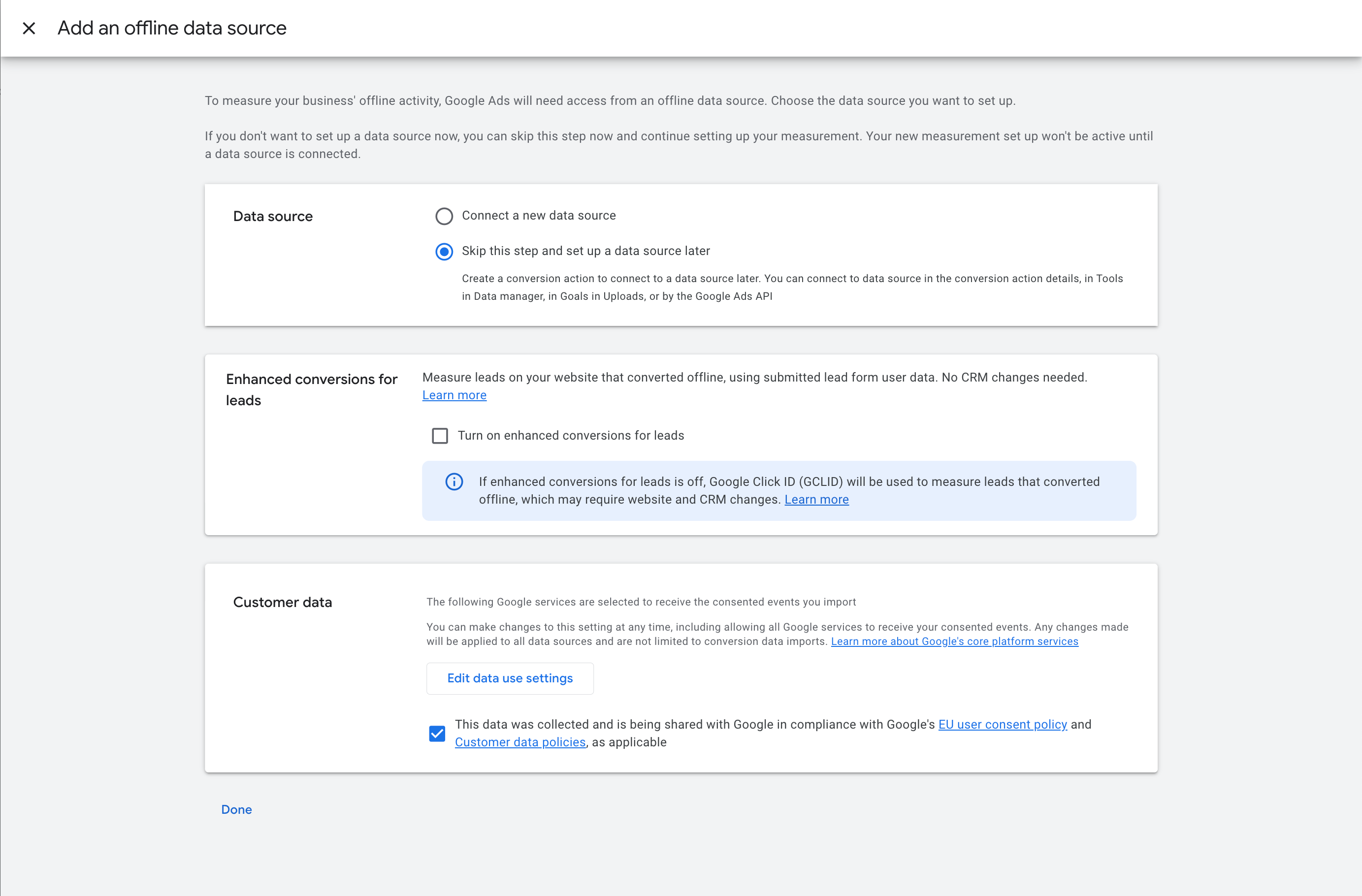
Create a New Source
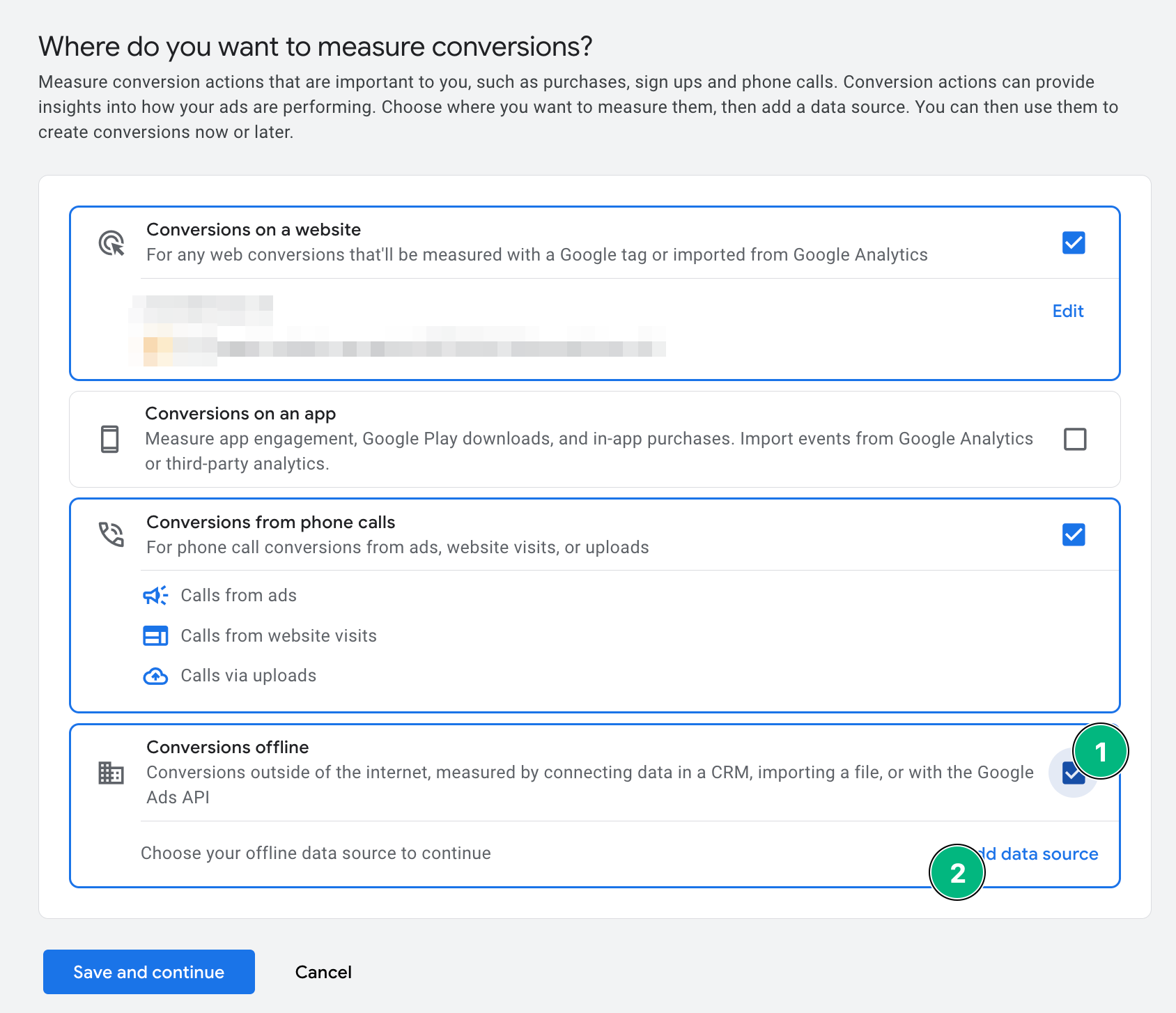
- Select Conversions offline
- Click Add data source
- Select Skip this step and set up a data source later
- Tick the checkbox under Customer Data
Define Your Conversion Name & Category
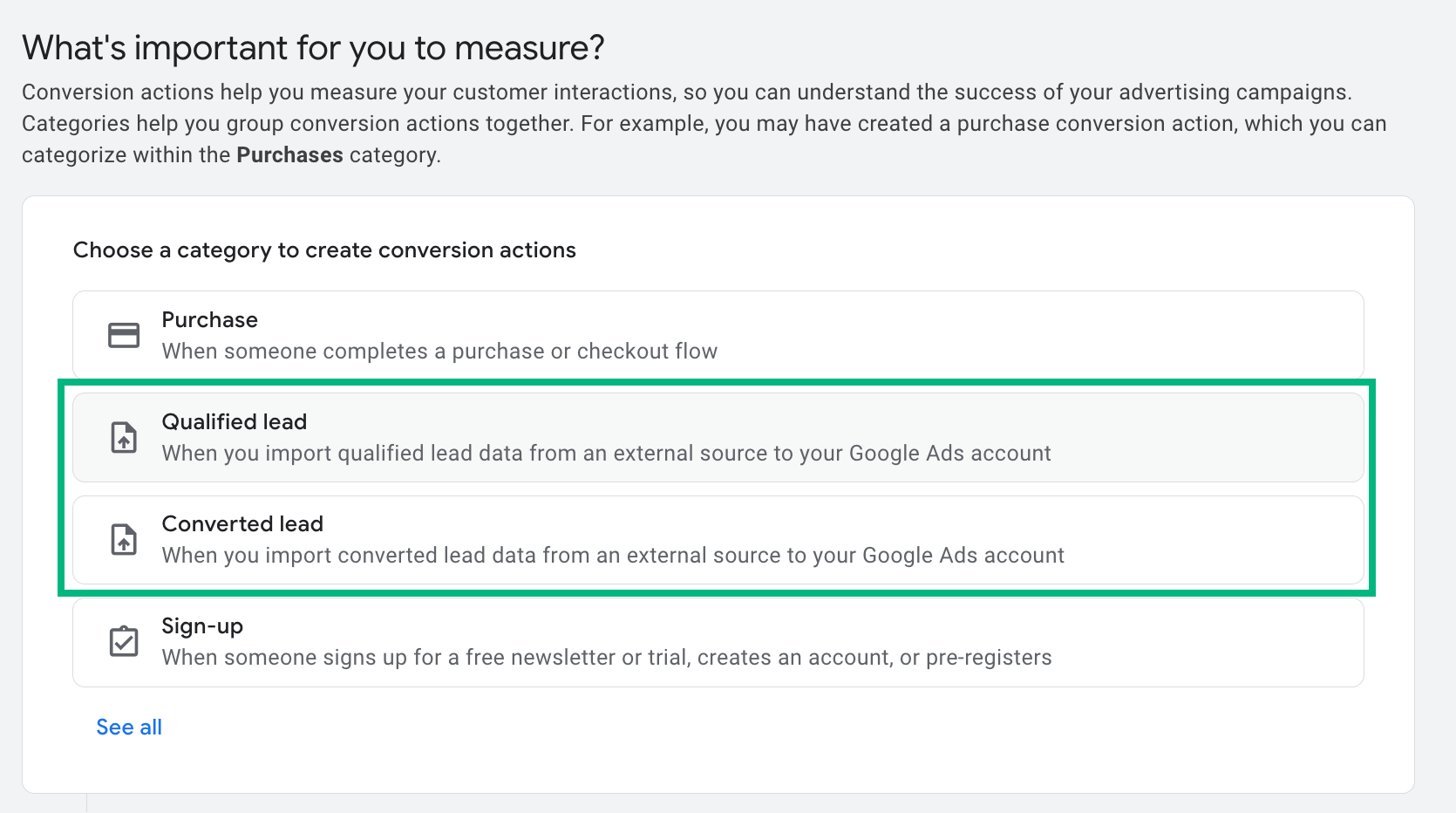
Now define the conversion name that will later be linked to a conversion label in LeadTrackr.Set Conversion Details
- Choose a conversion category that matches the lead stage:
- Qualified Lead
- Converted Lead
- Or any other category that fits your funnel
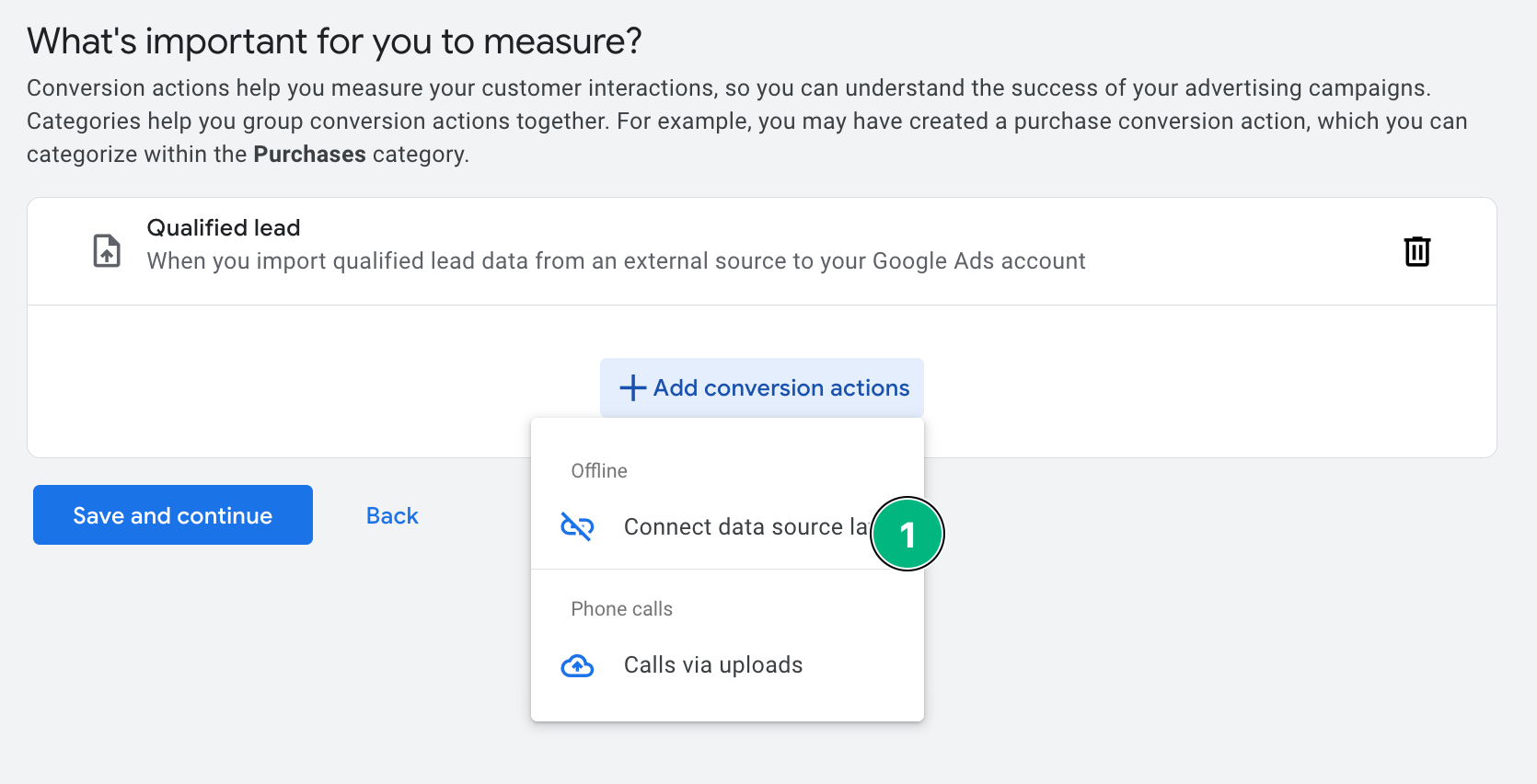
- Click Add conversion actions
- Select Connect data source later
Recommended Conversion Settings
If you’re unsure what to choose, we recommend the following:What’s Next?
Now that your offline conversions are set up in Google Ads, go back to LeadTrackr and set up your conversion labels to link your internal lead statuses to Google Ads conversion events.Set Up Conversion Labels
Link lead statuses like “Quote Sent” or “Customer Signed” to Google Ads conversions