← Learn

UTM Parameters: The Complete Tagging Guide

UTM parameters tell your analytics which campaign brought in a visit, a lead or a sale. Without them, part of that traffic gets reported as Direct. This guide covers what each parameter does, the exact string to paste into every platform LeadTrackr connects to, and the mistakes that make good tagging look like bad performance.

Lester Visser
Tracking Specialist
Updated · 16 min read

What are UTM parameters?

UTM parameters are key-value pairs added to the end of a link: utm_source, utm_medium, utm_campaign, utm_content and utm_term. They tell your analytics where a visitor came from. The browser passes them to your site in the URL, analytics reads them off the landing page, and the visit is filed under that campaign instead of being inferred from the referrer. They are plain text you write yourself, which is why they work in every tool and why they break so easily.

Why analytics needs UTM parameters

Without UTMs, analytics relies on the referrer header to identify the traffic source. That works for a plain link on another website and fails in most of the places that matter. Email clients send no referrer. Links opened from a native app send no referrer. An ad platform that redirects through its own domain sends that domain instead of the campaign. All of it is reported as Direct.

A UTM overrides that inference. The source is stated in the URL, and it survives every redirect between the ad and your landing page.

Nothing validates what you write. A typo in utm_medium does not trigger an error. GA4 creates a separate value, so the traffic no longer appears under the intended campaign. Most tracking problems announce themselves somewhere; this one does not, which is why tagging errors tend to survive for months.

The nine campaign parameters

GA4 accepts nine campaign parameters. Most guides cover the original five and stop there. The other four have been supported for years, and two of them are collected without ever appearing in a report.

ParameterAnswersStatusExample valuesGA4 dimension
utm_sourceWho sent the traffic?Requiredgoogle, facebook, newsletterSession source
utm_mediumHow did they send it?Requiredcpc, email, paid_socialSession medium
utm_campaignWhich campaign was it?Requiredspring_sale, always_on_brandSession campaign
utm_idWhich campaign, by ID?Recommended20345678901Session campaign ID
utm_source_platformWhich tool bought the media?RecommendedSearch Ads 360, DV360Session source platform
utm_termWhich keyword or audience?Optionallead+tracking+softwareSession manual term
utm_contentWhich creative or link?Optionalheadline_b, footer_ctaSession manual ad content
utm_creative_formatWhat kind of creative?Collected, not reporteddisplay, video, search(no dimension)
utm_marketing_tacticHow was it targeted?Collected, not reportedremarketing, prospecting(no dimension)

GA4 accepts utm_creative_format and utm_marketing_tactic but exposes no dimension for either. Sending them is harmless and currently pointless.

Anatomy of a tagged URL

A tagged URL is your landing page, a ?, and then key-value pairs joined by &. Order does not matter. Case does.

https://leadtrackr.io/pricing?utm_source=google&utm_medium=cpc&utm_campaign=brand
Landing page: https://leadtrackr.io/pricing
Where the click ends up. Do not put UTMs on internal links between your own pages: that starts a new session and overwrites the original source with your own site.
Separator: ?
The first parameter gets a ?, every one after it gets an &. If your URL already contains a ?, everything you add uses &.
Parameters: utm_source=google&utm_medium=cpc&utm_campaign=brand
Lowercase keys, lowercase values, no spaces. Use underscores or hyphens where you want a space, and stick to whichever one you pick.

Six naming rules

Tagging usually fails at the level of convention, not syntax. These six rules are worth documenting somewhere the whole team can reach, because fixing any of them retroactively means rebuilding reports.

  1. 1.Lowercase everything

    GA4 treats Facebook, facebook and FACEBOOK as three separate sources. One campaign tagged in title case splits a year of data across rows that look like separate channels. Lowercase is also what the ad platforms generate automatically, so it is the value your manual tags need to match.

  2. 2.No spaces in values

    A space is encoded as %20 or + somewhere between the ad and the report, and which one you get depends on the platform. spring sale can end up as three different campaigns across three channels. spring_sale cannot.

  3. 3.Keep utm_medium to a closed list

    Source is open-ended, because new partners appear all the time. Medium is not. Agree on your list once (cpc, paid_social, email, affiliate, referral, organic_social, display) and do not add to it casually. Medium drives channel grouping, so an invented value creates a channel nobody is looking at.

  4. 4.Match the medium regex GA4 uses

    GA4 recognises a paid click when utm_medium matches ^(.*cp.*|ppc|retargeting|paid.*)$. That covers cpc, ppc and anything starting with paid. Values like advertising, ads and sponsored do not match, and end up in the same bucket as a broken tag.

  5. 5.Prefer IDs over names for anything you might rename

    Campaign names get edited. When one is, utm_campaign={{campaign.name}} starts writing a different value and your historical rows stop joining to the new ones. Send the ID in utm_id, send the name in utm_campaign if you want it readable, and group on the ID.

  6. 6.Document the convention where media buyers can find it

    A shared sheet with one tab per platform and the exact paste string is enough. What matters is that a freelancer setting up a campaign at 11pm can find it without asking anyone.

Platform by platform

Every ad platform lets you append parameters to your landing page URL, and each one uses its own macro syntax to fill in the campaign, ad set and creative dynamically. Set the string once, at the highest level the platform allows, and everything underneath it inherits the string.

The strings below are ready to paste. They use the same parameters in the same order on every platform, so a report combining two of them lines up. Each one is followed by the full macro list for that platform if you want to build your own.

These strings go in the platform's tracking field, not in your landing page URL. Do not start them with ?: every platform on this list joins them to your URL for you.

Microsoft Ads

The same model as Google, with different casing and a different source value.

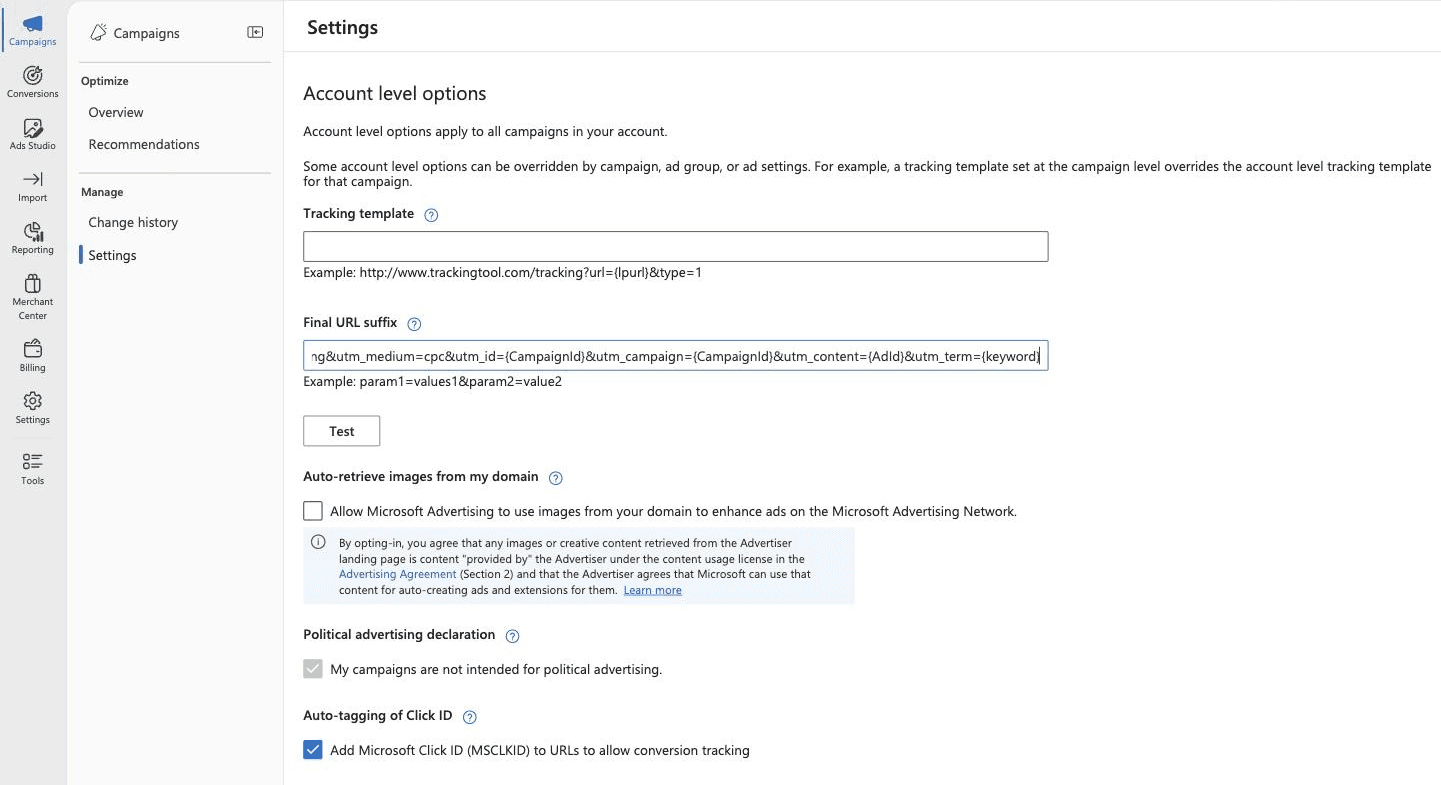
Microsoft AdvertisingCampaignsSettingsAccount level optionsFinal URL suffix

Microsoft copied the Google Ads model closely enough that your thinking transfers, and changed it just enough that your string does not. The macros are CamelCase in the documentation, so {CampaignId} rather than {campaignid}, and there is no {creative}: the ad ID macro is {AdId}.

Set it in Final URL suffix at account level, with the same inheritance rules as Google. Lower levels override higher ones.

The suffix cannot start with ?, & or #, and it cannot contain {lpurl} or {ignore}, which belong in a tracking template.

Microsoft Advertising account level options with a tagging string in the Final URL suffix field

Microsoft Advertising, account level options. Note that this screen sits under Campaigns, not under the Settings icon in the left rail.

  1. 1Open Campaigns in the left rail, then Settings under Manage.
  2. 2Leave Tracking template empty unless you redirect through a tracking tool.
  3. 3Paste into Final URL suffix. Use Test underneath to check the assembled URL before you save.
Final URL suffix, account level
utm_source=bing&utm_medium=cpc&utm_id={CampaignId}&utm_campaign={CampaignId}&utm_content={AdId}&utm_term={keyword}
All 10 Microsoft Ads macros
{CampaignId}The numeric campaign ID.
{AdGroupId}The numeric ad group ID.
{AdId}The numeric ad ID.
{keyword}The keyword that triggered the ad.
{MatchType}e exact, p phrase, b broad.
{Network}o owned and operated, s syndicated partners, a audience.
{Device}m mobile, t tablet, c computer.
{msclkid}The Microsoft click ID, if you want it in the URL as well as auto-tagged.
{QueryString}The full search query string the user typed.
{_yourname}A custom parameter you defined yourself. Note the leading underscore.

Use bing as the source, not microsoft

GA4 classifies Paid Search by matching utm_source against a published list of search sites. bing is on that list. microsoft, microsoft-ads and msn ads are not, so a campaign tagged that way lands in Paid Other instead of Paid Search.

The platform was renamed, the classification list was not. Tag utm_source=bing and use "Microsoft" in your reporting layer, where renaming costs nothing.

Sources: What tracking or URL parameters can I use? · URL tracking with upgraded URLs

Meta Ads

Double curly braces, set per ad, and one source value that breaks Paid Social.

Ads ManagerAd levelTrackingURL parameters

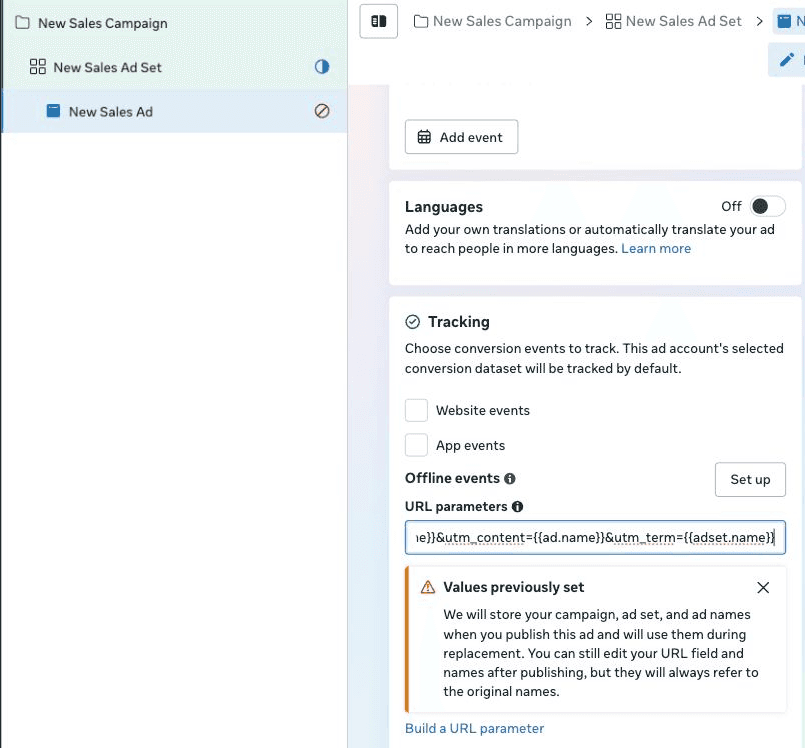
Meta puts tagging in a dedicated URL parameters field at ad level, in the Tracking card alongside the conversion event settings. Paste the string without a leading ?, because Meta joins it to your URL for you.

Meta uses double curly braces and dots in the token names: {{campaign.name}}, not {campaign_name}. Getting the brace style wrong is the most common reason a Meta URL arrives with a literal {{campaign.name}} in it.

There is no account-level default. The field lives on the ad, so every new ad is a chance to forget it. Duplicating an existing ad carries the parameters across, so build one properly tagged ad and duplicate from it.

Meta stores the campaign, ad set and ad names when you publish the ad, and keeps using those stored values afterwards. Renaming a campaign later does not change what {{campaign.name}} writes into the URL, so your reports keep the original name while Ads Manager shows the new one. {{campaign.id}} has no such ambiguity, which is the argument for sending utm_id as well.

Meta Ads Manager ad editor with a tagging string in the URL parameters field and the values previously set warning

Meta Ads Manager, ad editor. The field is on the ad, so it has to be set for every ad you build.

  1. 1Select the ad, not the campaign or the ad set. Only this level has the field.
  2. 2Paste into URL parameters, in the Tracking card.
  3. 3Meta warns you that it stores the campaign, ad set and ad names at publish time. See the note below.
URL parameters, ad level
utm_source=facebook&utm_medium=paid_social&utm_id={{campaign.id}}&utm_campaign={{campaign.name}}&utm_content={{ad.name}}&utm_term={{adset.name}}
All 8 Meta Ads macros
{{campaign.id}}The numeric campaign ID. Survives a rename.
{{campaign.name}}The campaign name as you typed it.Meta freezes the name at publish time, so a later rename does not reach the URL.
{{adset.id}}The numeric ad set ID.
{{adset.name}}The ad set name.
{{ad.id}}The numeric ad ID.
{{ad.name}}The ad name.
{{site_source_name}}fb, ig, msg or an, depending on where the ad was shown.See the warning below before putting this in utm_source.
{{placement}}The placement the ad was shown in.

Why utm_source=meta breaks Paid Social

The string meta does not appear in Google's published source categories. Traffic tagged utm_source=meta matches no entry on the social list, falls out of Paid Social, and is reported under Referral or (other), while the spend still sits on your Meta invoice.

facebook is on the list, and so is fb. Use one of those.

That is also the argument against utm_source={{site_source_name}}. It returns fb and ig, which are fine, but also msg and an for Messenger and Audience Network, which are not documented as social sources. If you want to split Facebook from Instagram, split at the ad set level and hard-code utm_source per ad set.

Keep utm_medium in the paid family as well. paid_social, cpc and paidsocial all match GA4's paid regex. social on its own is read as organic social, which makes paid campaigns look free.

Sources: About URL parameters · GA4 default channel group definitions

LinkedIn Ads

One string at account level, and a 2025 macro rename that invalidated older guides.

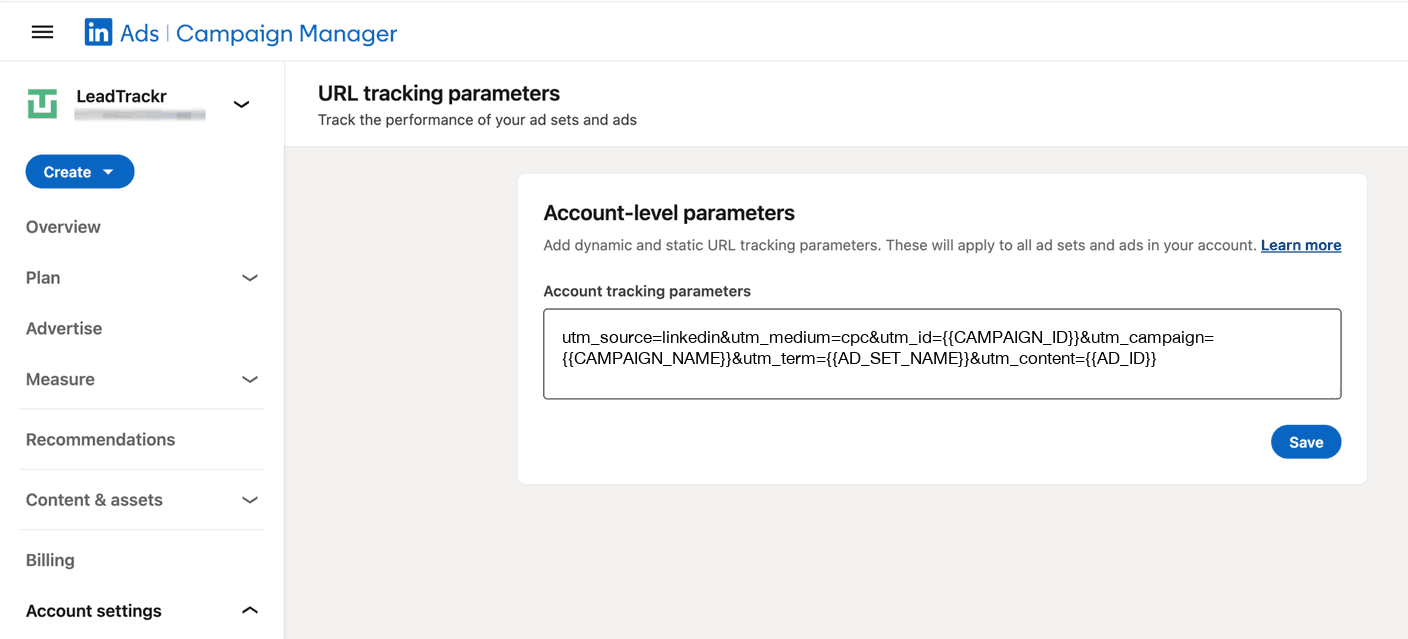
Campaign ManagerAccount settingsURL tracking parametersAccount tracking parameters

LinkedIn takes a single string, the same way Google and Microsoft do, and applies it to every ad set and ad in the account. You can also set it per campaign, where it overrides the account string. You cannot set it on an individual ad: that level does not have the field.

The macros use double curly braces and upper-case names with underscores: {{CAMPAIGN_ID}}, not {campaignid} and not {{campaign.id}}. Every platform in this guide uses a different convention.

Keys accept letters, digits and underscores. Values also accept a plus sign and a hyphen, so paid_social and paid-social both work, but a space or a colon will be rejected.

LinkedIn Campaign Manager URL tracking parameters screen with the tagging string in the account tracking parameters field

LinkedIn Campaign Manager. One string here covers every ad set and every ad in the account.

  1. 1Open Account settings in the left rail, then URL tracking parameters.
  2. 2Paste the whole string into Account tracking parameters. One field, not a row per parameter.
  3. 3Save. A retired macro is rejected here, so a string that saves is a string LinkedIn recognises.
Account tracking parameters, account level
utm_source=linkedin&utm_medium=paid_social&utm_id={{CAMPAIGN_ID}}&utm_campaign={{CAMPAIGN_NAME}}&utm_term={{AD_SET_NAME}}&utm_content={{AD_ID}}
All 8 LinkedIn Ads macros
{{ACCOUNT_ID}}The ad account ID.
{{ACCOUNT_NAME}}The ad account name.
{{CAMPAIGN_ID}}The campaign ID.
{{CAMPAIGN_NAME}}The campaign name.
{{AD_SET_ID}}The ad set ID.
{{AD_SET_NAME}}The ad set name.
{{AD_ID}}The ID of the individual ad.
{{AD_NAME}}The name of the individual ad.

The macro names changed in October 2025

LinkedIn used to have its own vocabulary: Campaign Group, Campaign, Creative, where "campaign group" meant what everyone else calls a campaign and "campaign" meant the ad set. In October 2025 it renamed the hierarchy to Campaign, Ad set, Ad, and renamed the macros to match.

{{CAMPAIGN_GROUP_ID}}, {{CAMPAIGN_GROUP_NAME}} and {{CREATIVE_ID}} are gone. The expensive part is that {{CAMPAIGN_ID}} and {{CAMPAIGN_NAME}} still exist but now refer to one level higher than they used to. A string copied from a guide written before the rename saves cleanly, delivers, and reports your campaign where your ad set belongs.

Two sources will still hand you the old names. LinkedIn's marketing API continues to use CAMPAIGN_GROUP_ID and the rest, so anything built against the API uses the old vocabulary while the interface uses the new one. Every blog post older than late 2025 is the other.

A retired macro is rejected outright with "One or more parameters contain an error", which is the easy case to spot. The harder case is a valid but shifted {{CAMPAIGN_NAME}}, which produces no error at all.

Sources: URL tracking parameters in Campaign Manager · Dynamic UTM tracking (API)

ChatGPT Ads

Four macros, single braces, and no channel grouping to fall into yet.

ChatGPT Ads ManagerCampaignEdit campaignLanding page query parameters

OpenAI's Ads Manager is the newest platform in this guide and the one where tagging matters most, because no analytics tool has an auto-tagging convention for it yet. What you put in the URL is all anyone downstream will know.

The field is called Landing page query parameters and sits behind the three-dot menu on a campaign, ad group or ad. More specific levels win: ad URL beats ad, ad beats ad group, ad group beats campaign. Set it once at campaign level and leave the lower levels empty.

Macros use single curly braces and snake_case, so the Google style rather than the Meta style.

Landing page query parameters, campaign level
utm_source=chatgpt&utm_medium=cpc&utm_id={campaign_id}&utm_campaign={campaign_id}&utm_content={ad_id}&utm_term={ad_group_id}
All 4 ChatGPT Ads macros
{campaign_id}The campaign identifier.
{ad_group_id}The ad group identifier.
{ad_id}The ad identifier.
{ad_account_id}The ad account identifier.

How GA4 classifies ChatGPT Ads

chatgpt is not on GA4's search or social source lists, so a click tagged utm_source=chatgpt&utm_medium=cpc matches only the paid medium regex and lands in Paid Other. That is the correct bucket until Google adds the source, but it does mean the channel stays invisible unless you look for it.

Build a custom channel group in GA4 with a rule for utm_source=chatgpt so the spend appears next to your other paid channels.

Decide on the utm_source value in writing before anyone launches. chatgpt, openai, chatgpt-ads and gpt are all defensible and mutually incompatible. Consistency matters more than the specific choice.

Sources: Ads in ChatGPT: the basics · Create ads for ChatGPT

How GA4 classifies your traffic

You do not tag in GA4. You tag in the ad platform, and GA4 reads the result. Every rule above follows from what GA4 does with the values it receives.

When a visit arrives, GA4 runs the source and medium through a fixed set of rules and files the session under one default channel group:

ChannelMatches when
Paid SearchSource is on Google's list of search sites AND medium matches ^(.*cp.*|ppc|retargeting|paid.*)$
Paid SocialSource is on Google's list of social sites AND medium matches the same paid regex
Paid OtherMedium matches the paid regex, but the source is not recognised
Organic SocialSource is on the social list, OR medium is social, social-network, social-media or sm
EmailSource or medium is email, e-mail, e_mail or e mail
Cross-networkCampaign name contains cross-network. Performance Max and Demand Gen land here
ReferralMedium is referral, app or link
DirectSource is exactly (direct) AND medium is (not set) or (none)
UnassignedNothing above matched

Two things follow from that table, and together they explain most misfiled traffic.

Paid Other means your source was not recognised. The medium matched, so GA4 knows the click was paid, but the source is not on Google's list. That is either a typo or a platform Google has not added yet: chatgpt today, or meta if you used the company name instead of the product name.

Unassigned means your medium missed the regex. A reasonable-looking utm_medium=advertising produces the same result as leaving the tag off entirely.

Google publishes the source list and accepts additions at googleanalytics-channelgrouprequests@google.com. In the meantime, a custom channel group in GA4 takes about five minutes and applies retroactively to your historical data.

Why browsers strip UTM parameters

Your tags can be correct, land on a working page, and still be missing when analytics reads the URL, because something between the click and the page removed them.

Three things do this, and between them they cover more traffic than most teams assume:

Safari
Strips known tracking parameters from links in Private Browsing and from links classified as cross-site trackers. The list of what it removes is not published and grows between releases.
Brave
Removes a hard-coded list of tracking parameters from every URL, in every window, by default. No setting has to be changed and most users are unaware it happens.
uBlock Origin and similar extensions
Ship URL-cleaning filter lists that strip utm_*. Some enable it by default, others put it one checkbox away, and extensions marketed as "link cleaners" do the same thing.

The visit still arrives. What you lose is the attribution: the visitor converts and gets filed as Direct. Your Direct traffic grows and the affected channel reports fewer conversions than it produced, which usually gets read as a performance problem.

You cannot spot this in a report, because a stripped visit is indistinguishable from a genuinely direct one. What you can do is stop the stripping from working.

Rename your parameters

All three blockers match on the parameter name. They look for utm_source and the rest of the set and delete what they find. They do not analyse the URL, they pattern-match a known list.

So change the names. Ship lt_src, lt_mdm and lt_cmp instead of utm_source, utm_medium and utm_campaign, and there is nothing for the blockers to match. The parameters arrive intact in every browser.

The trade-off is that nothing downstream recognises them. GA4 only reads utm_*, so a URL carrying lt_src looks to GA4 like a URL with no campaign data. There are two ways to close that gap, and which one fits depends on where your tracking already runs.

Translate them back server-side

If you run a server-side GTM container, rewrite the URL before GA4 sees it. A Query Replacer variable maps lt_src back to utm_source on the page_location parameter, and an Augment Event transformation applies it to your GA4 tags. GA4 receives a normal utm_-tagged URL and classifies it normally.

This is the complete fix. It also requires a server container, so it is a realistic option for a stack that already has one and a significant project for a stack that does not.

Give LeadTrackr the new names

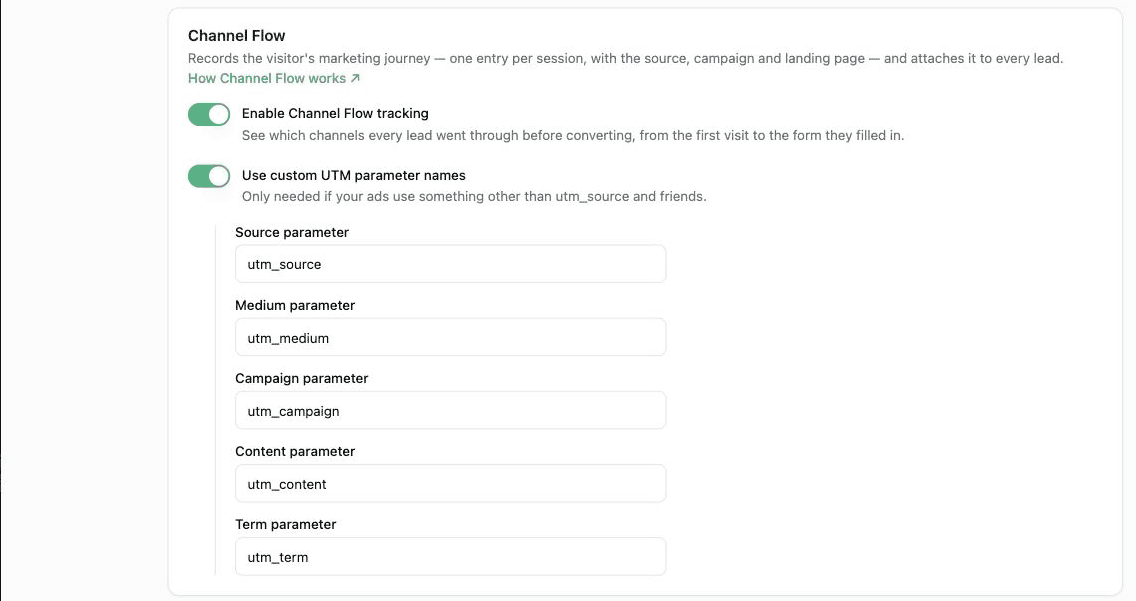
Channel Flow, LeadTrackr's session and channel tracker, reads whichever parameter names you configure. If your campaigns ship lt_src and lt_mdm, point Channel Flow at those names and the channel path on every lead is built from parameters no browser strips.

This does not fix GA4. It does mean the attribution that reaches your CRM, and the attribution sent back to the ad platform when a deal closes, is built on data the blockers did not remove.

Custom parameter names in Channel Flow

Channel Flow records the full sequence of sources a visitor passes through before converting, not only the last one. It stores the five standard UTM parameters on every session and falls back to the click ID when there are none: gclid, gbraid or wbraid recorded as google / cpc, and msclkid as bing / cpc. The fallback keeps the channel from disappearing, but it cannot identify the campaign.

Custom parameter names are a setting. Where you change it depends on how Channel Flow was installed.

The LeadTrackr WordPress plugin with Use custom UTM parameter names switched on, showing the five parameter fields

The WordPress plugin. The five fields are pre-filled with the standard names, so switching the toggle on changes nothing until you edit them.

  1. 1Switch on Use custom UTM parameter names.
  2. 2Replace the five values with the names your campaigns ship, for example lt_src in Source parameter.

WordPress plugin

LeadTrackr → Settings → Channel Flow

  1. 1Open Use custom UTM parameter names.
  2. 2Fill in the five fields, one per parameter, with the names your campaigns actually ship.
  3. 3Save. Leave the section closed if you use standard UTMs, which is what every ad platform generates by default.

GTM tag

Google Tag Manager → your Channel Flow tag

  1. 1Tick Use Custom UTM Parameters.
  2. 2Enter your five parameter names.
  3. 3The GTM route also exposes Session Timeout, which the WordPress route does not. It defaults to 30 minutes, matching GA4.

Use one installation, not both. If Channel Flow runs through the WordPress plugin, the setting in GTM has no effect, and the other way round.

Channel Flow setup documentation covers both routes step by step, including the session timeout setting.

This matters beyond tidy reporting. LeadTrackr sends closed deals back to the ad platform as offline conversions, and the click ID is what the platform matches on. The UTMs are what you match on: which campaign, which creative and which ad set produced the revenue, in a form your CRM and your spreadsheets can read. Both need to travel in the same URL, and both need to survive the trip.

Seven common tagging mistakes

Seven ways a tagging setup goes wrong. None of them raise an error, and all of them are visible in a report once you know what to look for.

  1. 1.Tagging your own internal links

    A UTM on a link between two of your own pages starts a new session and overwrites the original source. The visitor arrived from a Google ad, clicked your nav, and is now attributed to your newsletter. Tag links that arrive at your site, never links inside it.

  2. 2.Turning off auto-tagging to avoid conflicts

    Auto-tagging and manual UTMs coexist without any conflict. Auto-tagging is what lets Google Ads and GA4 share conversion data, so removing it costs you a working integration in exchange for a shorter URL.

  3. 3.Case and spelling drift

    Facebook and facebook. cpc and CPC. newsletter and nieuwsbrief. Each pair becomes two rows in every report, and GA4 does not merge them retroactively.

  4. 4.Putting the campaign name in utm_source

    Source is the platform, campaign is the campaign. Swapping them turns every campaign into its own channel, which makes channel-level analysis impossible and is difficult to unwind once a quarter of data has accumulated.

  5. 5.Campaign names that encode every dimension

    2026_q1_nl_prospecting_video_15s_audience-a_v2 is a database row with underscores. Keep the campaign name short and put the dimensions in the parameters built for them: utm_content for creative, utm_term for audience.

  6. 6.Assuming the tag survived

    Click your own ad in Safari and in a browser with a blocker installed, then look at the address bar. It takes two minutes and it is the only reliable way to find out that something between the ad and the page is removing your parameters.

  7. 7.Tagging the redirect instead of the destination

    If your ad points at a link shortener or a redirect, the parameters have to survive the hop. Many shorteners drop the query string by default. Test the final landing URL, not the one you typed into the platform.

FAQ

Frequently asked questions

Only if they create duplicate URLs that Google can crawl. A UTM-tagged URL is a distinct URL, so if one gets linked publicly or ends up in a sitemap you can have two indexable versions of a page. A self-referencing canonical tag on every page prevents that. Tagged links arriving from ads are not an issue, because Google does not index the destination of your ad clicks.
Use facebook. The string "meta" does not appear in GA4's published source category list, so traffic tagged that way falls out of Paid Social into Referral or (other). The company renamed itself; Google's classification file did not follow. Tag facebook and call it Meta in your reporting layer.
No, it works the other way round. When a URL carries both a gclid and manual UTM parameters, GA4 uses the Google Ads values and ignores your utm_source and utm_medium. Your manual tags still reach every other tool that reads the URL, which is the reason to keep both.
Three at minimum: source, medium and campaign, because GA4 reports "(not set)" for anything missing. Add utm_id if the platform offers a campaign ID macro, since it is the only value that survives a campaign rename. Add term and content when you have something meaningful to put in them.
The visit still arrives, but without campaign data, so it is attributed to Direct. It is indistinguishable from genuine direct traffic in your reports, so the channel looks like it is underperforming rather than mismeasured. Renaming your parameters to values the blockers do not recognise is the fix.
Yes, and it is the standard way to get past parameter stripping. Nothing downstream understands them by default, so you either translate them back to utm_ in a server-side GTM container before GA4 sees them, or point your tracking tool at the new names directly. LeadTrackr's Channel Flow supports custom parameter names in both the WordPress plugin and the GTM tag.
For email, yes, and it is where they matter most: email clients send no referrer, so an untagged newsletter click is reported as Direct traffic. For offline, tag the destination of a QR code or a vanity URL redirect the same way you would any other link. The parameters only need to be on the URL the phone eventually loads.

Tagging is straightforward to set up and easy to get subtly wrong, because nothing in the chain validates what you write. Paste the right string into each platform, agree on your values once, and check twice a year that the parameters still arrive intact.

Get started free

See which campaign produced the revenue

LeadTrackr stores the UTMs and the click ID with every lead, then sends the closed deal back to the ad platform so bidding optimises on revenue instead of form fills.

Start Free

5-min setup · cancel anytime