
Meta Sequenced Events: optimize for leads that book, not leads that fill in forms
Meta is rolling out a lead event that only counts when two things happen in order: someone becomes a lead, and then does something that matters. The setting takes a minute to switch on. The second event is the part most accounts cannot feed yet.

The short answer
Sequenced Events is a lead event option in Meta Ads Manager, under the "Maximize number of qualified leads" performance goal. You pick an initial event, usually Lead, and a final event, such as Schedule or a qualified-lead event. Meta credits the ad only when the same person completes both, in that order, so delivery shifts toward people who are likely to reach the final step. That only works if the final event reaches Meta reliably, and for most lead generation businesses the final step happens in a calendar tool or a CRM, not in the browser.
Emma de Vries
 facebook / paid_social
- Mon 09:14
Form submitted
Request a demo
Mon 09:14
LeadInitial event - Wed 15:02
Conversion label
Call booked

Wed 15:02
ScheduleFinal event
Where to find it in Ads Manager
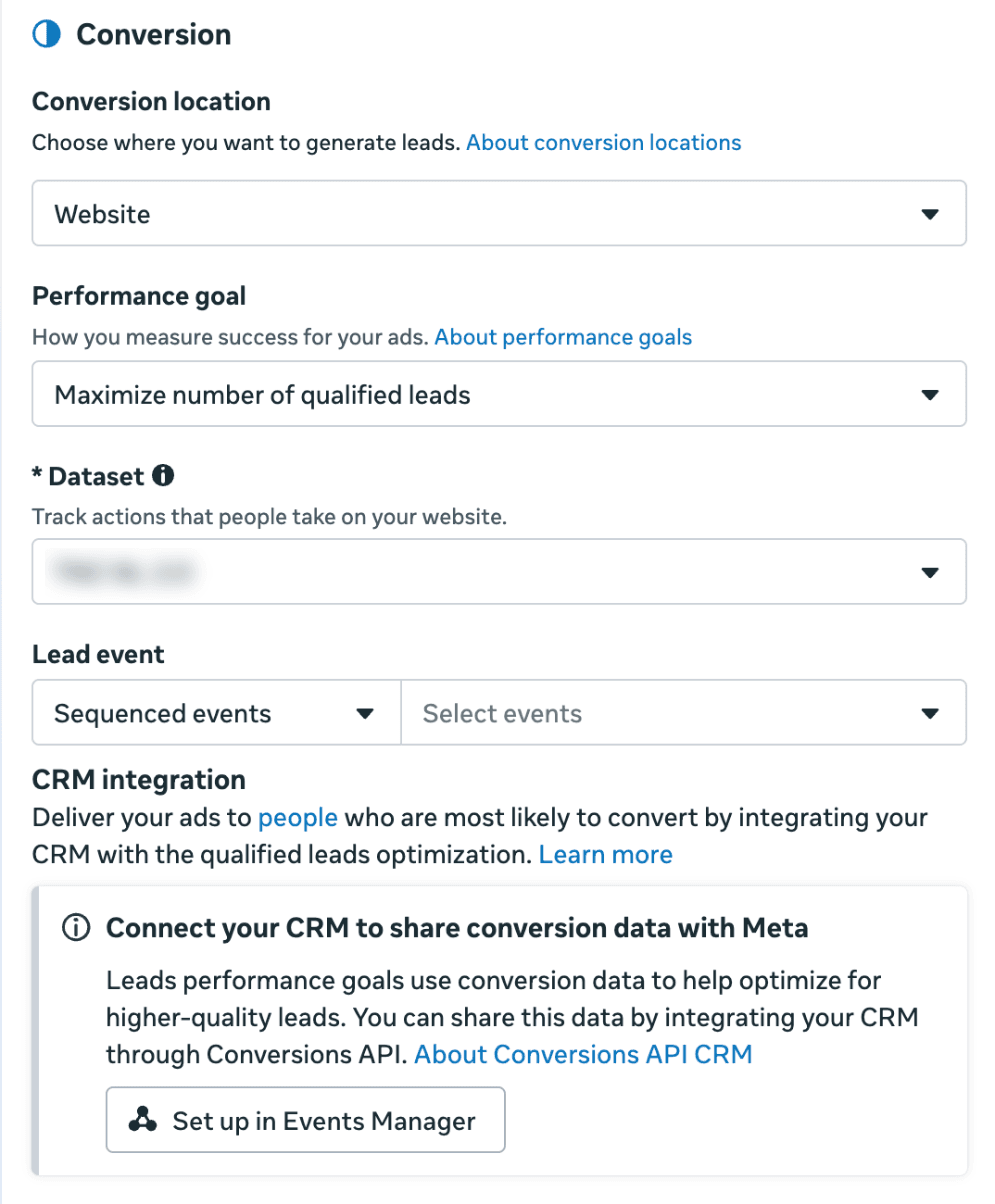
Meta has not published documentation for Sequenced Events, and it is not in every ad account. Advertisers started reporting it in August 2026, and by late October it was showing up in more accounts. Where it is available, it sits at the ad set level. The screenshots below are from a client account where it is live.
- 1Create a campaign with the Leads objective.
- 2In the ad set, set the conversion location to Website.
- 3Set the performance goal to Maximize number of qualified leads. In older accounts this goal was called conversion leads.
- 4Select your dataset. A Lead event field appears. Choose Sequenced events in the left dropdown.
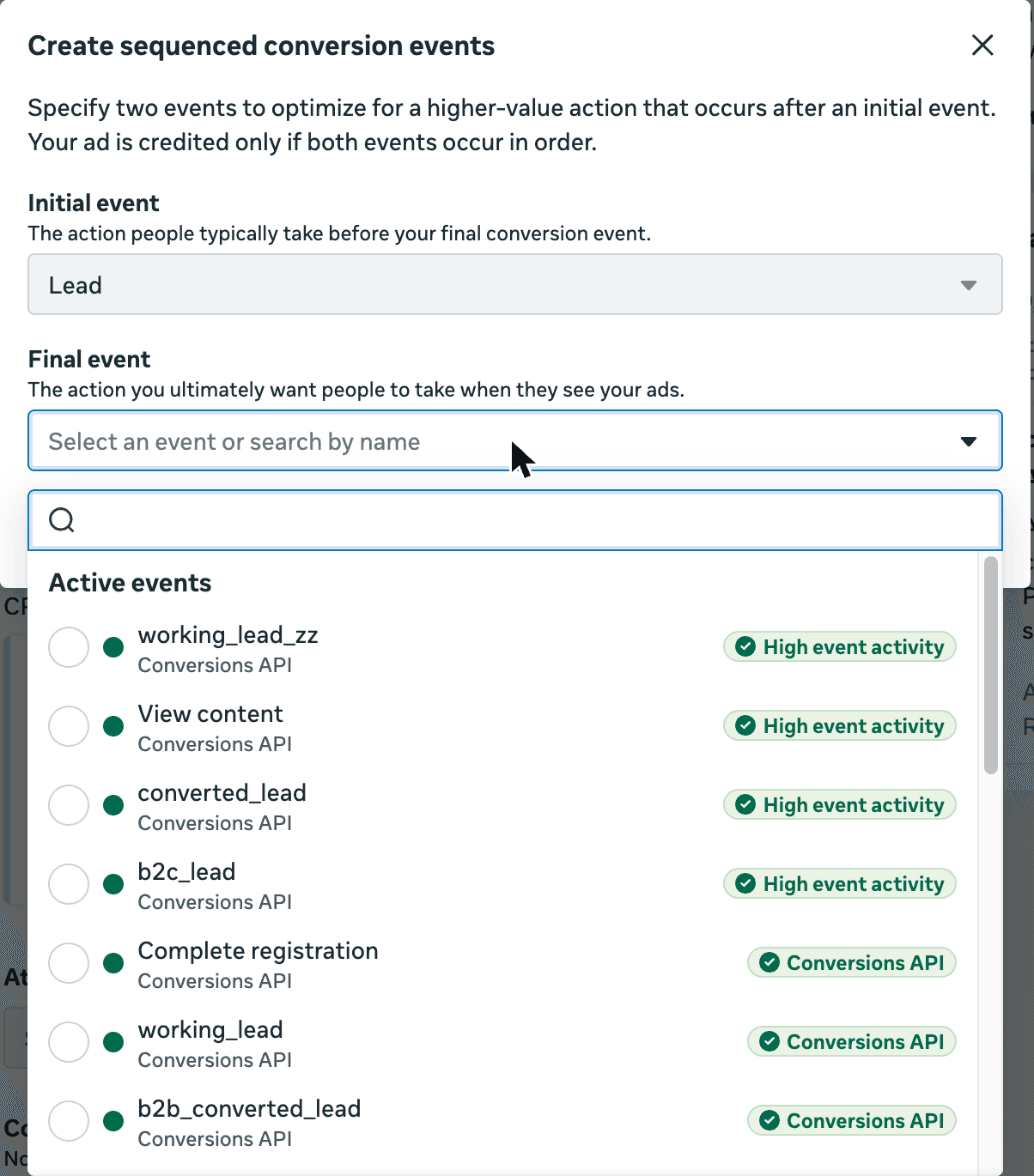
- 5Pick an existing sequence or click Create sequence. The initial event is fixed to Lead. The final event can be any active event in the dataset, including custom events you send through the Conversions API.
If the performance goal is available but you do not see Sequenced events under it, your account does not have the feature yet. There is no setting that unlocks it.
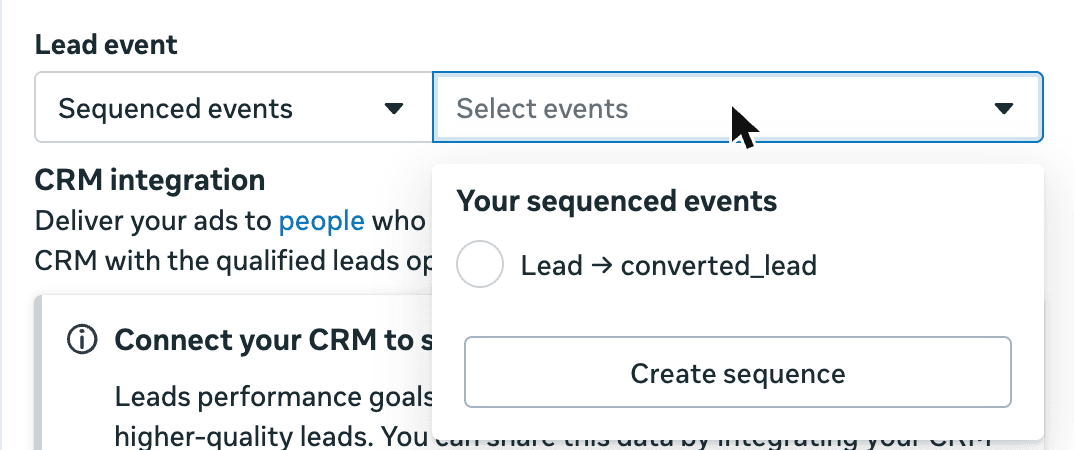
converted_lead, a CRM stage sent through the Conversions API.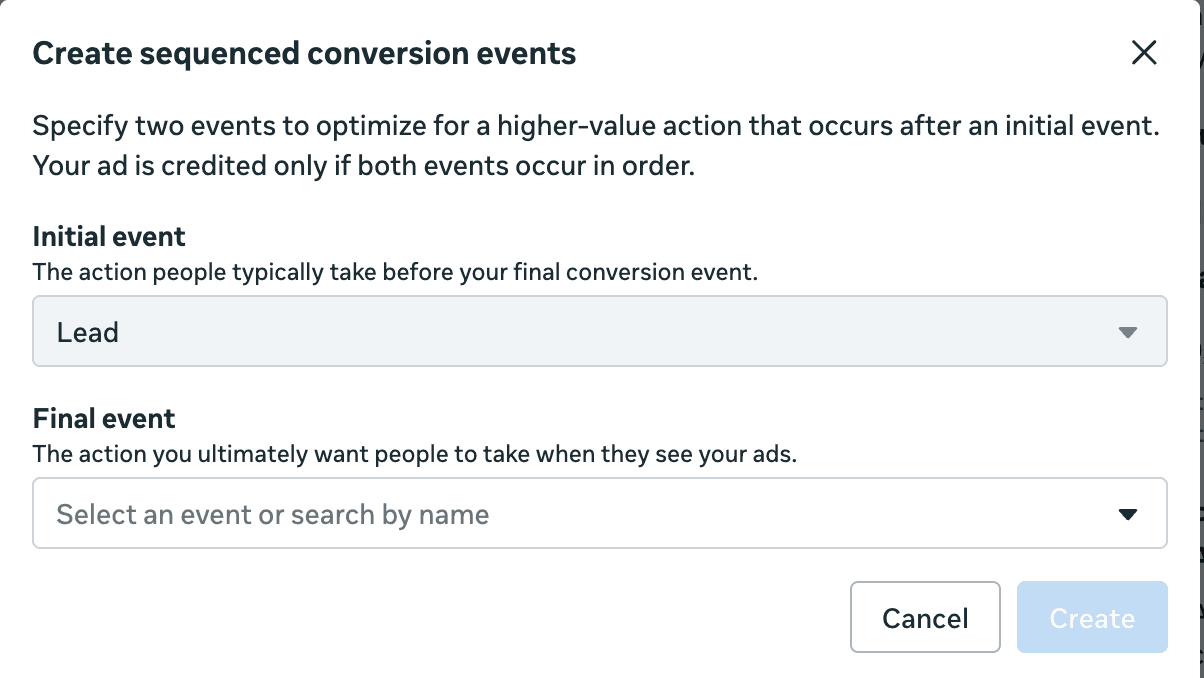
Sequences worth testing
The sequence you choose tells Meta what a good lead looks like. In the accounts we checked, the initial event is always Lead, so the choice is in the final event. The last column matters most, because it decides how the final event gets to Meta.
| Initial event | Final event | Fits | Where the final event happens |
|---|---|---|---|
| Lead | Schedule | Service businesses and B2B where a booked call is the first real sign of intent. | Calendar tool, or your sales team books it by phone |
| Lead | Qualified lead (custom event) | Companies where sales screens every lead before spending time on it. | CRM, when a rep changes the lead status |
| Lead | Opportunity or quote sent (custom event) | Higher ticket sales with enough volume at the opportunity stage. | CRM, days or weeks after the form |
| Lead | Purchase | A free opt-in followed by a low ticket offer. | Checkout, often on another domain or platform |
Why the final event is the hard part
The initial event is easy. Your pixel already sends Lead when someone submits a form, and most accounts have been optimizing on it for years. That is also the problem Sequenced Events is meant to fix: Meta finds people who fill in forms, and a share of them never pick up the phone.
The final event is different. In three of the four sequences above, it does not happen on your website. A prospect books through a calendar link that lives on another domain. A rep qualifies the lead in the CRM on Tuesday afternoon. A deal reaches the proposal stage three weeks after the click. None of that fires a pixel.
So the final event has to be sent server-side, through the Conversions API, from wherever the step happens. And it has to arrive in a form Meta can connect to the initial event. Meta credits the ad only when it can see that the same person did both. If the final event arrives without the identifiers that tie it to the original lead, Meta has a Schedule event from an unknown person, and the sequence never completes.
What your setup needs
Meta asks for a CRM integration but does not say more about the implementation. These five points follow from how the Conversions API matches events to people, and they are the same points that decide whether any offline event performs.
1. Keep the Meta identifiers with the lead
At the moment of the form, store the
_fbcand_fbpcookie values (or thefbclidfrom the URL) next to the email address and phone number. Weeks later, when the final event happens, those values are the link back to the click. They are gone if you only capture them in the browser and never save them. The click ID reference lists the formats.2. Define the final step once, and stick to it
If one rep marks a lead as qualified after a single phone call and another waits for a budget, Meta learns two different things from the same event name. Write down what the final event means and make it a single CRM status, not a judgement call.
3. Send the final event with the time it happened
The Conversions API takes an
event_time. Send the moment the call was booked or the lead was qualified, not the moment your sync ran. A batch job that sends everything at midnight puts every event in the wrong order relative to the click.4. Send it once per lead
A lead that moves from qualified to unqualified and back should not produce two Schedule events. Duplicates inflate the result and teach Meta that the wrong people complete the sequence.
5. Make sure there is enough volume
Meta needs a steady flow of completed sequences to learn from. A handful of opportunities a month is not enough. If your deepest stage is rare, pick a stage closer to the form, such as a booked call, even if it is a weaker signal.
Set up your qualification events with LeadTrackr in 30 minutes
LeadTrackr captures every lead together with the ad click it came from, follows that lead into your CRM, and sends each stage back to Meta, Google Ads and GA4 as a conversion. No code and no server-side tagging. For Sequenced Events, that means the final event reaches Meta with the same identity as the Lead event.
- 5min5 of 30
1. Add LeadTrackr to your website


Install the WordPress plugin or the Google Tag Manager tag. From then on every form, call and chat is stored as a lead with its attribution data.
- 5min10 of 30
2. Connect Meta
Paste your dataset ID and a Conversions API access token from Events Manager. Use the dataset your pixel already sends Lead to, so both events of the sequence land in the same place.
- 10min20 of 30
3. Connect your CRM


Link HubSpot, Pipedrive, Teamleader or another CRM, or use the lead webhook. No CRM? Set the status on the lead in LeadTrackr.
- 5min25 of 30
4. Create your qualification event
Add a conversion label such as "Call booked" and give it the Meta event name
Scheduleorqualified_lead. Switch on "convert once" so each lead counts one time. - 5minDone
5. Build the sequence in Ads Manager
In a Leads ad set, choose "Maximize number of qualified leads", then Sequenced events, and pick Lead followed by Schedule.
What LeadTrackr handles for you after that:
- The Meta identifiers stay with the lead, even if the call is booked weeks later.
- The event goes out with the time the stage changed, not the time of a nightly sync.
- Skipped stages are still sent in order, so Meta never sees a Schedule without a Lead.
- The same labels feed Google Ads and GA4, so one setup serves every platform.
FAQ
Frequently asked questions
Sequenced Events moves the optimization target from "filled in a form" to "did something after the form". Switching it on is the easy part. The work is getting the second event to Meta, on time, once per lead and tied to the right person. Start with the offline conversion tracking guide if that part is not in place yet.
Get started free
Your qualification events, live in 30 minutes
Capture the ad click with every lead, follow it into your CRM and send each stage back to Meta, Google Ads and GA4.
30 days free · Cancel anytime