> ## Documentation Index
> Fetch the complete documentation index at: https://leadtrackr.io/docs/llms.txt
> Use this file to discover all available pages before exploring further.
# Set Up the GA4 Integration
> Send offline conversions from LeadTrackr to Google Analytics 4 using the Measurement Protocol.
## Step 1: Connect Your Google Account
Start by connecting your Google account in LeadTrackr.
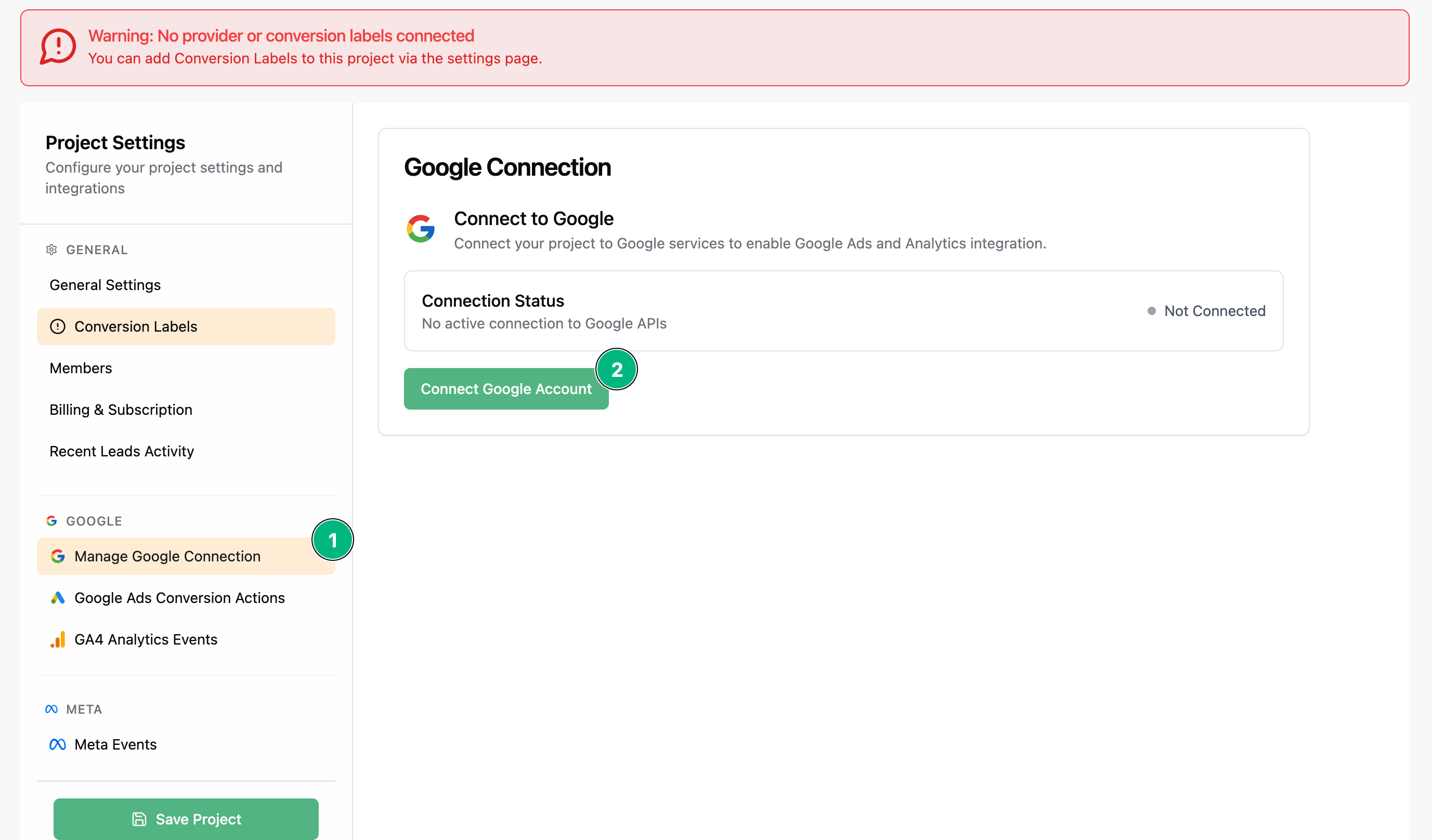
1. Go to your project settings.
2. Click on **Manage Google Connection**.
3. Click **Connect Google Account**.
4. Follow the prompts to authorize your account.
Make sure this Google account is connected to your Google Ads and Google Analytics accounts.
 ## Step 2: Choose Your GA4 Property
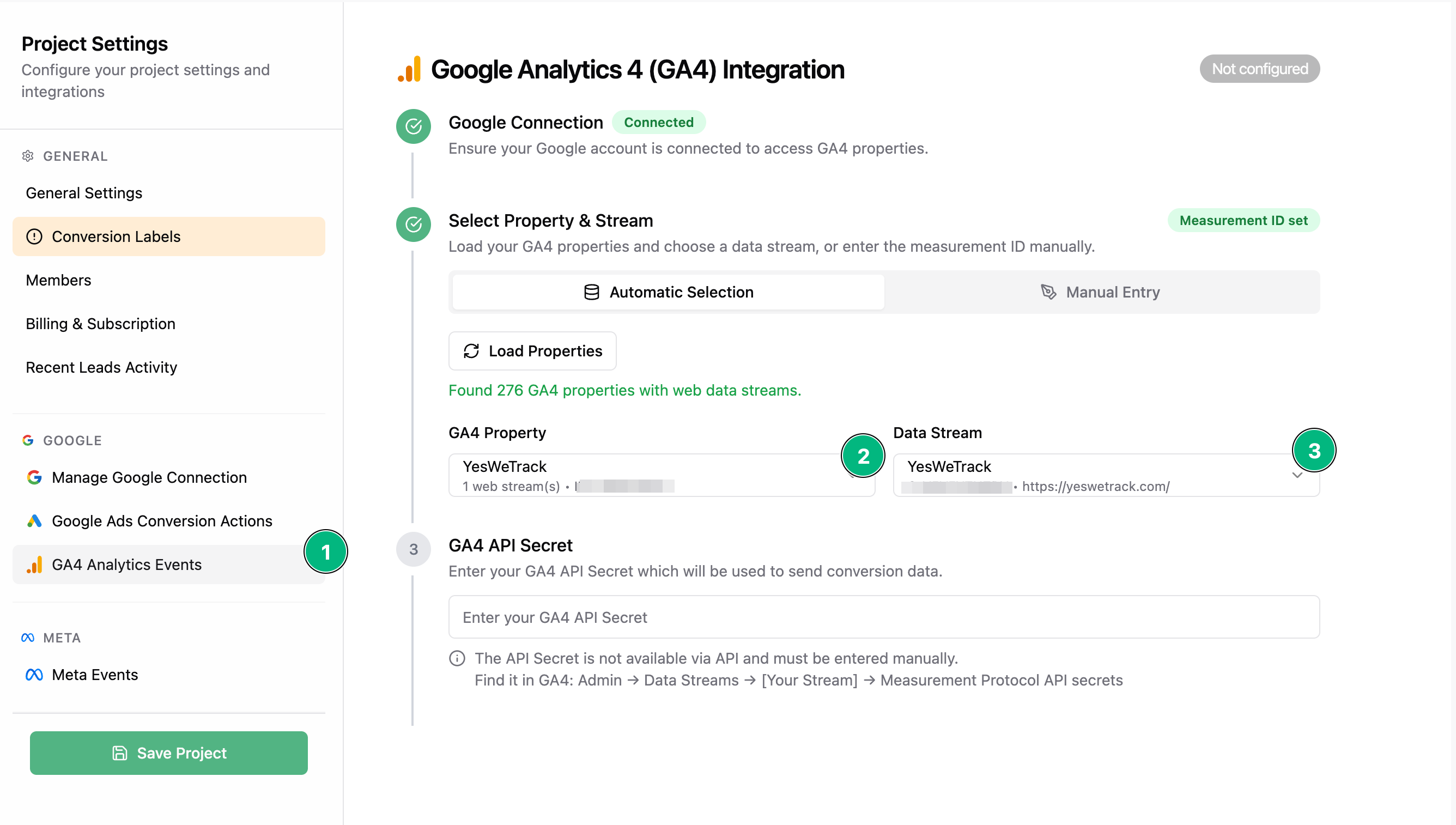
Once connected, go to the **GA4 Analytics Events** tab.
1. Select the GA4 property you want to integrate with.
## Step 2: Choose Your GA4 Property
Once connected, go to the **GA4 Analytics Events** tab.
1. Select the GA4 property you want to integrate with.
 If your property doesn't show up in the list:
* Choose **Manual Entry**
* Enter your **Measurement ID** (looks like `G-XXXXXXX`)
## Step 3: Create a GA4 API Secret
Now we need to create an API Secret for the Measurement Protocol.
1. Go to your Google Analytics property
2. Navigate to: **Admin** → **Data collection and modification** → **Data streams**
If your property doesn't show up in the list:
* Choose **Manual Entry**
* Enter your **Measurement ID** (looks like `G-XXXXXXX`)
## Step 3: Create a GA4 API Secret
Now we need to create an API Secret for the Measurement Protocol.
1. Go to your Google Analytics property
2. Navigate to: **Admin** → **Data collection and modification** → **Data streams**
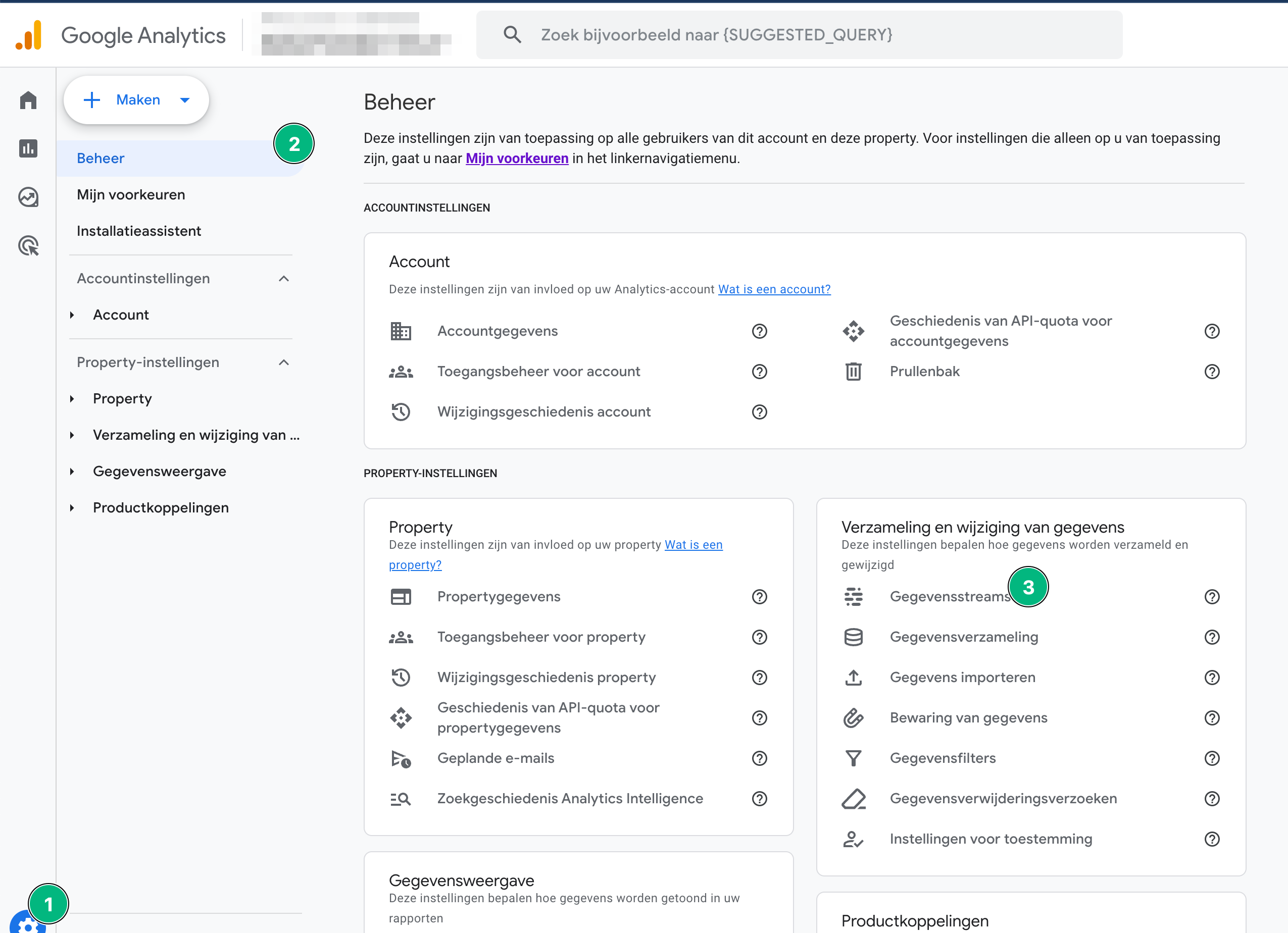 3. Choose your data stream
4. Click on **Measurement Protocol API secrets**
3. Choose your data stream
4. Click on **Measurement Protocol API secrets**
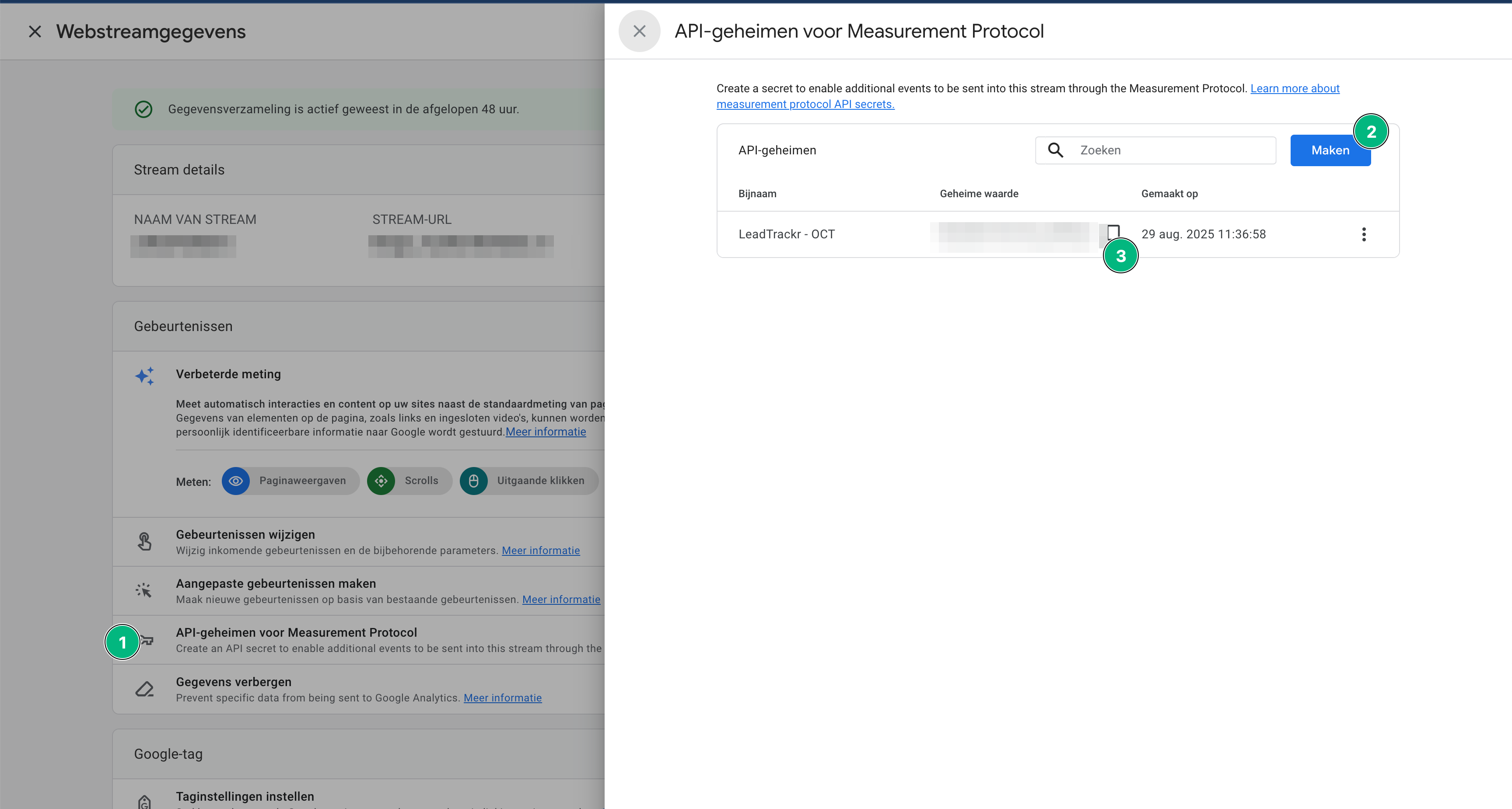 5. Click **Create** and make a new API Secret, give it a name (e.g. "LeadTrackr Integration")
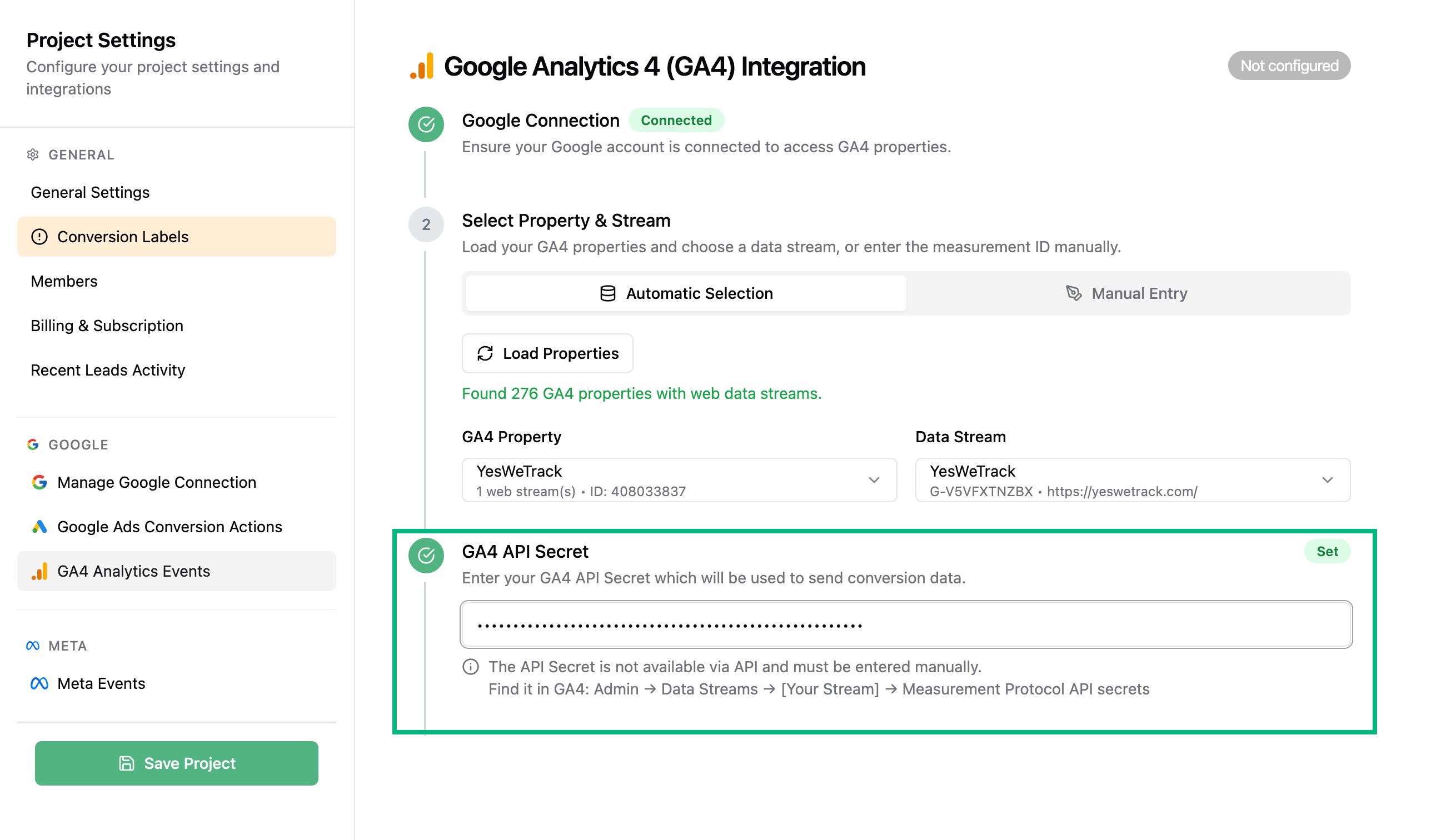
## Step 4: Copy and Paste the Secret
1. Copy the **generated API secret**
2. Go back to the GA4 integration tab in LeadTrackr
3. Paste the secret into the **API Secret** field
5. Click **Create** and make a new API Secret, give it a name (e.g. "LeadTrackr Integration")
## Step 4: Copy and Paste the Secret
1. Copy the **generated API secret**
2. Go back to the GA4 integration tab in LeadTrackr
3. Paste the secret into the **API Secret** field
 ## What's Next?
Your GA4 integration is ready — now link your sales actions to GA4 events using conversion labels.
Link your lead statuses to GA4 events
## Further Reading
* [Measurement Protocol overview — Google Analytics for Developers](https://developers.google.com/analytics/devguides/collection/protocol/ga4)
* [Offline and CRM data import — Google Analytics Help](https://support.google.com/analytics/answer/10071301)
## What's Next?
Your GA4 integration is ready — now link your sales actions to GA4 events using conversion labels.
Link your lead statuses to GA4 events
## Further Reading
* [Measurement Protocol overview — Google Analytics for Developers](https://developers.google.com/analytics/devguides/collection/protocol/ga4)
* [Offline and CRM data import — Google Analytics Help](https://support.google.com/analytics/answer/10071301)