> ## Documentation Index
> Fetch the complete documentation index at: https://leadtrackr.io/docs/llms.txt
> Use this file to discover all available pages before exploring further.
# Rate and Process Your Leads
> Once your account is set up, you're ready to start rating leads and sending offline conversions to your ad platforms.
## Inside a Project: The 3 Lead Tabs
When you open a project in LeadTrackr, you'll see three tabs:
* **Open** — New leads ready for qualification
* **Rated** — Leads you've qualified and marked as done
* **Pending** — Leads ready to be sent as offline conversions
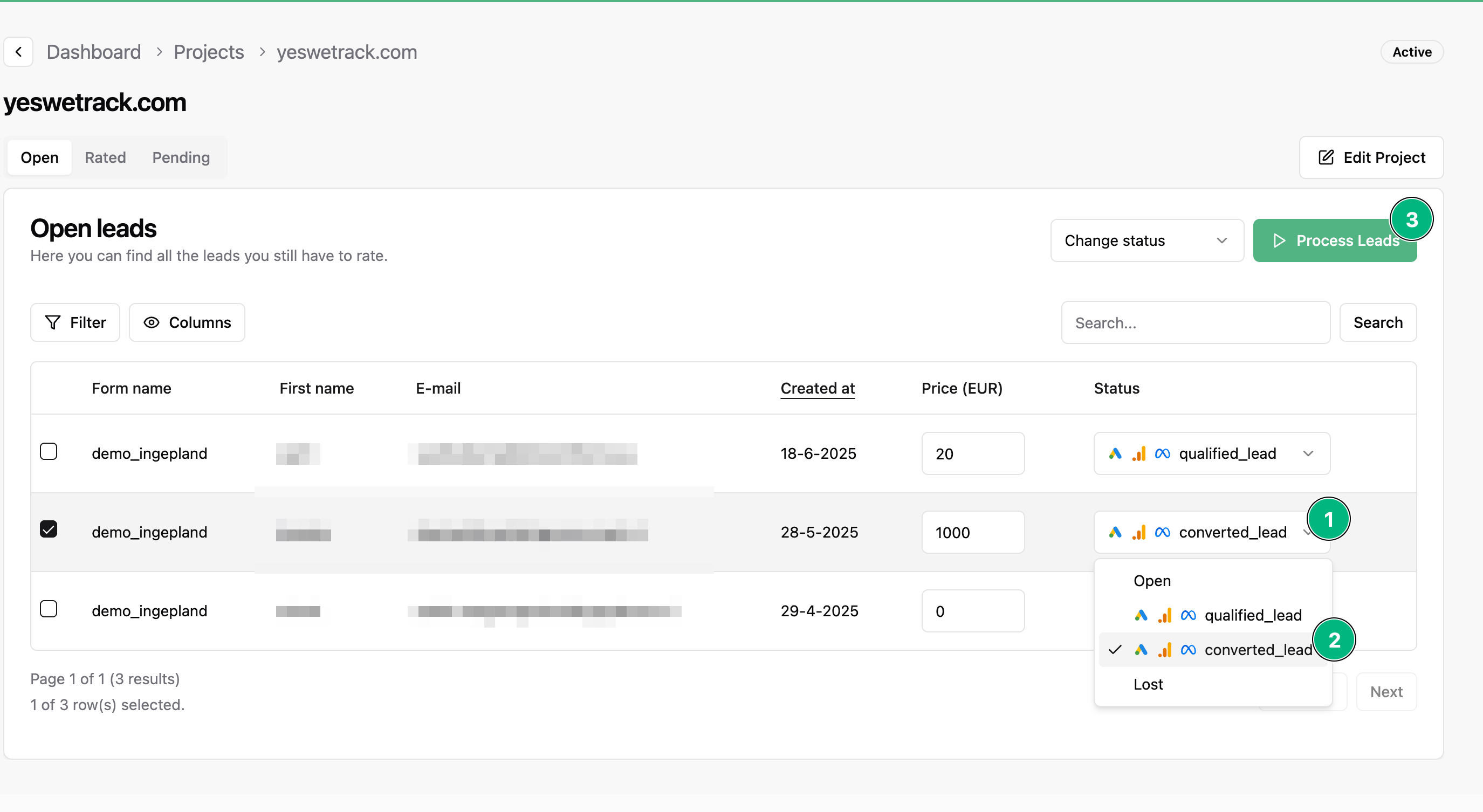
## Step 1: Rate Your Leads (Open Tab)
In the **Open** tab, you'll see all incoming leads that are ready to be qualified.
1. Select a lead.
2. Rate the lead using the [conversion labels](/docs/conversion-labels/set-up-conversion-labels) you've set up.
3. Repeat for all leads you want to process.
Use clear and consistent labels, such as "Qualified Lead" or "New Customer", to track lead quality.
 ## Step 2: Process Your Rated Leads
Once you've finished rating, click **Process Leads**. This will:
* Move the leads to the **Pending** tab
* Prepare them to be sent as offline conversions to connected platforms like Google Ads or Meta
## Step 3: Send Offline Conversions (Pending Tab)
Leads in the **Pending** tab are now going to be pushed to your ad platforms (this can take up to 1 day).
What happens next depends on your **conversion label settings**:
### Mark as Done = Enabled
* The lead moves to the **Rated** tab
* It won't appear in your Open tab again
* Offline conversion is sent just once
### Mark as Done = Disabled
* The lead goes back to the **Open** tab
* It keeps the status you gave it earlier
* You can re-qualify the lead again (e.g. for a follow-up conversion)
This is useful if a lead becomes a customer later on, and you want to send a second offline conversion.
## Example Flow
Appears in the **Open** tab
Click **Process Leads**
Gets sent as offline conversion
Based on settings, lead goes to **Rated** (or comes back to **Open**)
## Step 2: Process Your Rated Leads
Once you've finished rating, click **Process Leads**. This will:
* Move the leads to the **Pending** tab
* Prepare them to be sent as offline conversions to connected platforms like Google Ads or Meta
## Step 3: Send Offline Conversions (Pending Tab)
Leads in the **Pending** tab are now going to be pushed to your ad platforms (this can take up to 1 day).
What happens next depends on your **conversion label settings**:
### Mark as Done = Enabled
* The lead moves to the **Rated** tab
* It won't appear in your Open tab again
* Offline conversion is sent just once
### Mark as Done = Disabled
* The lead goes back to the **Open** tab
* It keeps the status you gave it earlier
* You can re-qualify the lead again (e.g. for a follow-up conversion)
This is useful if a lead becomes a customer later on, and you want to send a second offline conversion.
## Example Flow
Appears in the **Open** tab
Click **Process Leads**
Gets sent as offline conversion
Based on settings, lead goes to **Rated** (or comes back to **Open**)