> ## Documentation Index
> Fetch the complete documentation index at: https://leadtrackr.io/docs/llms.txt
> Use this file to discover all available pages before exploring further.
# How to Find and Download Your Invoices
> Find and download your LeadTrackr invoices from the billing portal for accounting and administration.
## Step 1: Open the Project Settings
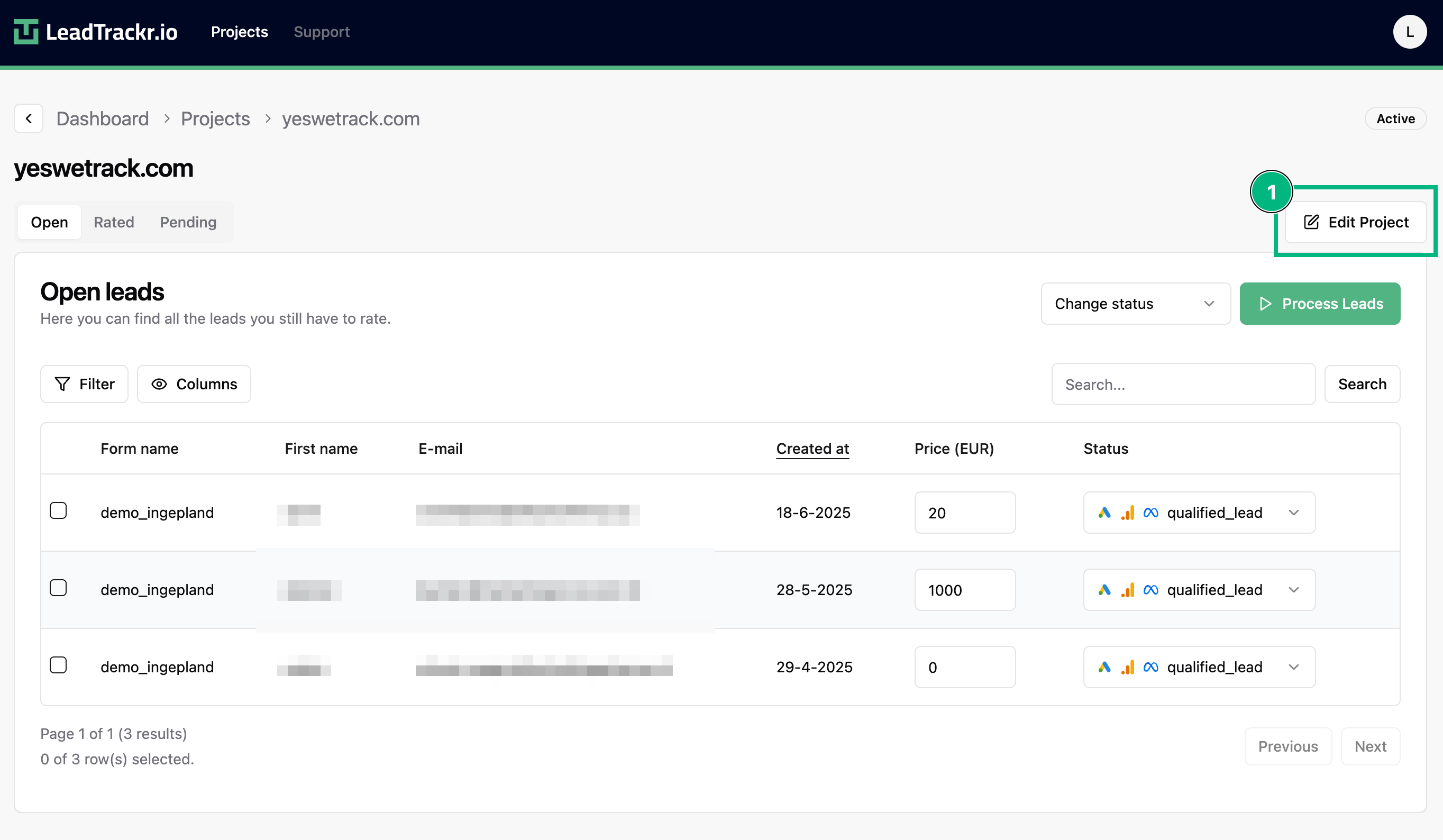
1. Go to the project where you want to access the billing information.
2. Click **Edit Project** in the top-right corner.
 ## Step 2: Go to Subscription & Billing
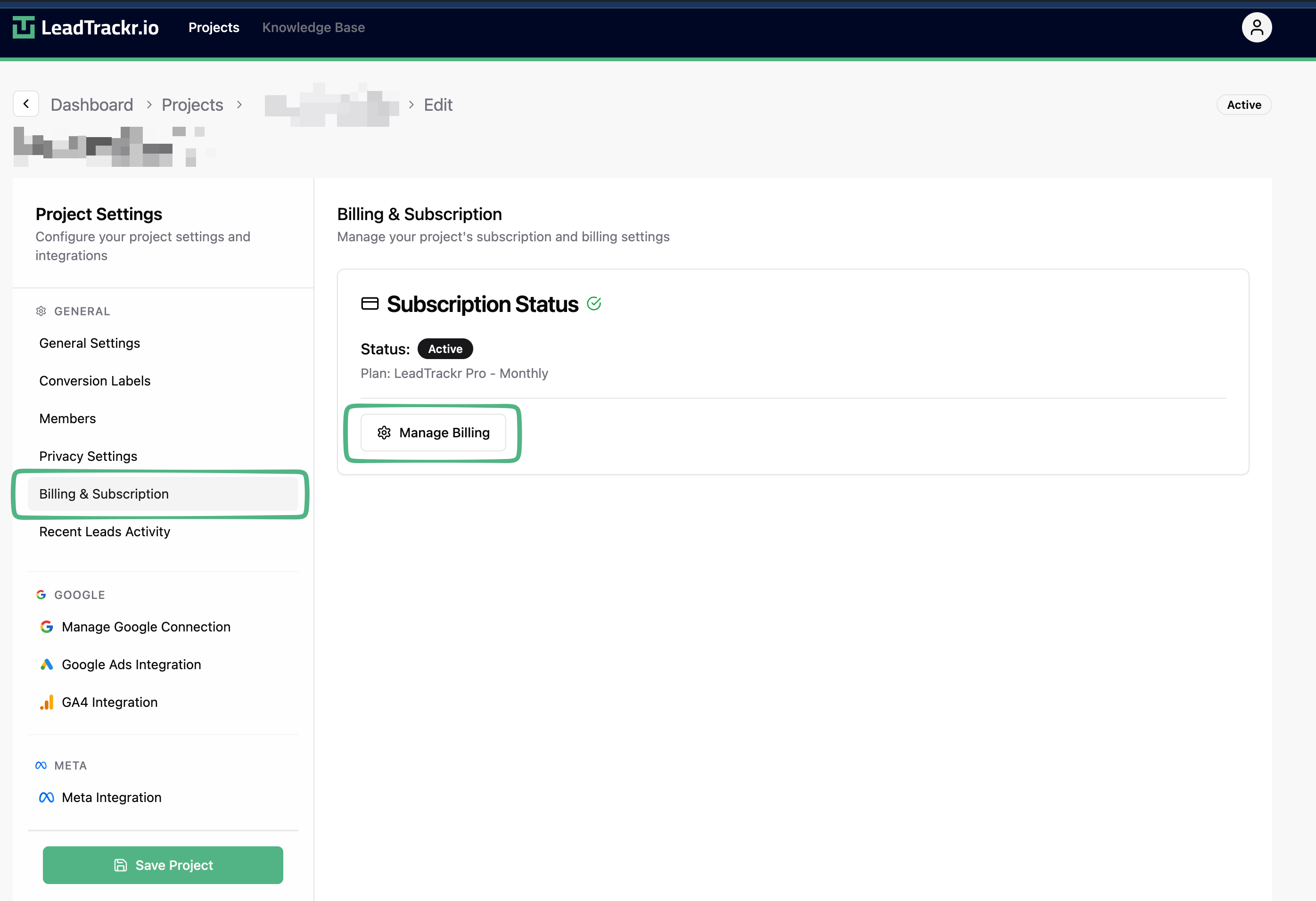
1. In the sidebar, navigate to **Subscription**.
2. Click **Manage Billing**.
3. You will be redirected to the billing portal.
## Step 2: Go to Subscription & Billing
1. In the sidebar, navigate to **Subscription**.
2. Click **Manage Billing**.
3. You will be redirected to the billing portal.
 ## Step 3: View and Download Your Invoices
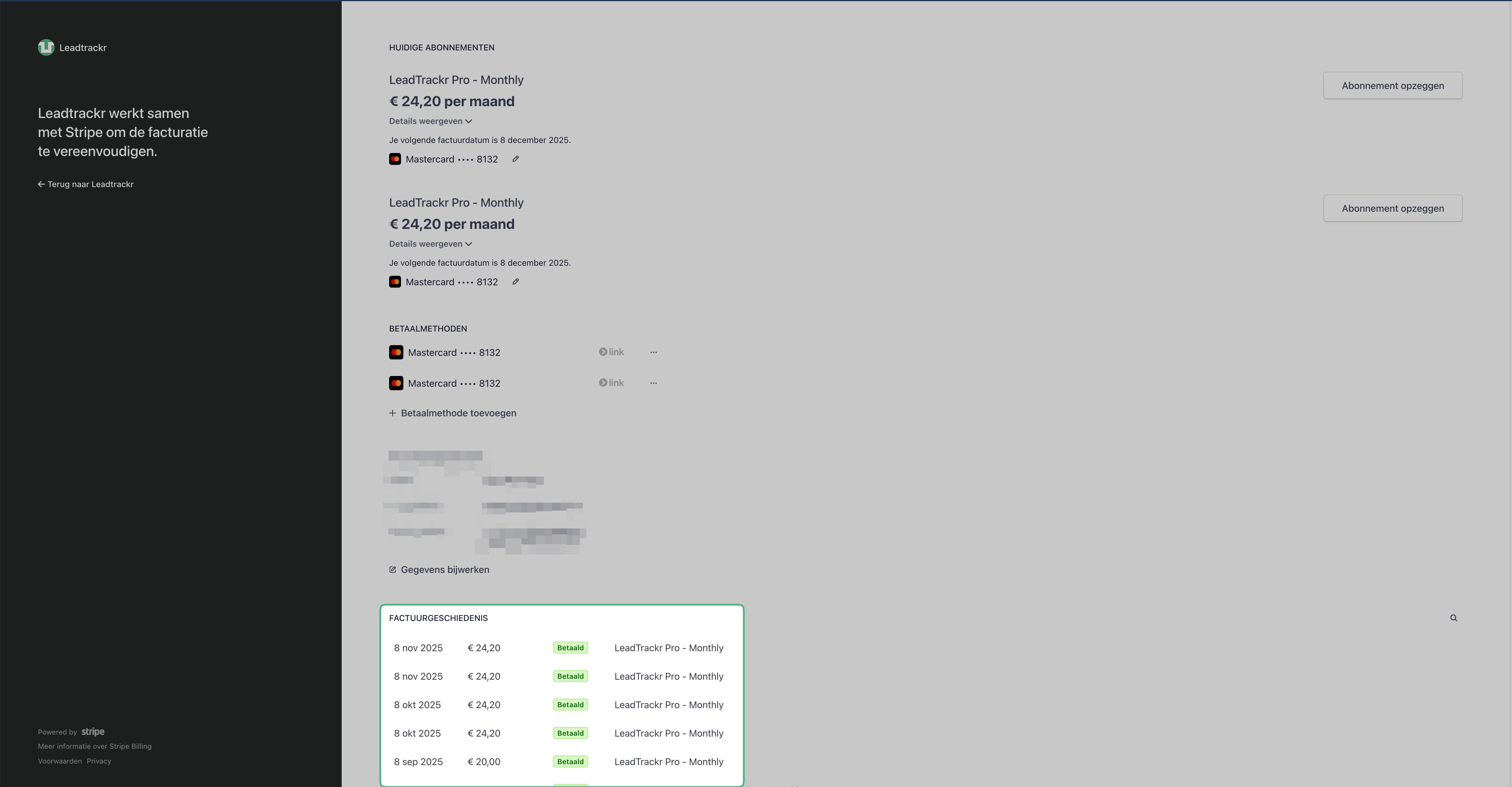
Inside the billing portal, you'll find all invoices under **Invoice History**.
Here you can:
* View invoices
* Download PDFs
* Check payment status
## Step 3: View and Download Your Invoices
Inside the billing portal, you'll find all invoices under **Invoice History**.
Here you can:
* View invoices
* Download PDFs
* Check payment status
 ## That's It!
You now have quick access to all your invoices.
Need to update your billing details? You can manage that in the same **Billing** section.
## That's It!
You now have quick access to all your invoices.
Need to update your billing details? You can manage that in the same **Billing** section.