> ## Documentation Index
> Fetch the complete documentation index at: https://leadtrackr.io/docs/llms.txt
> Use this file to discover all available pages before exploring further.
# Add Members to a Project
> Invite team members to your LeadTrackr project so they can help qualify leads and manage offline conversions.
## Step 1: Open the Project Settings
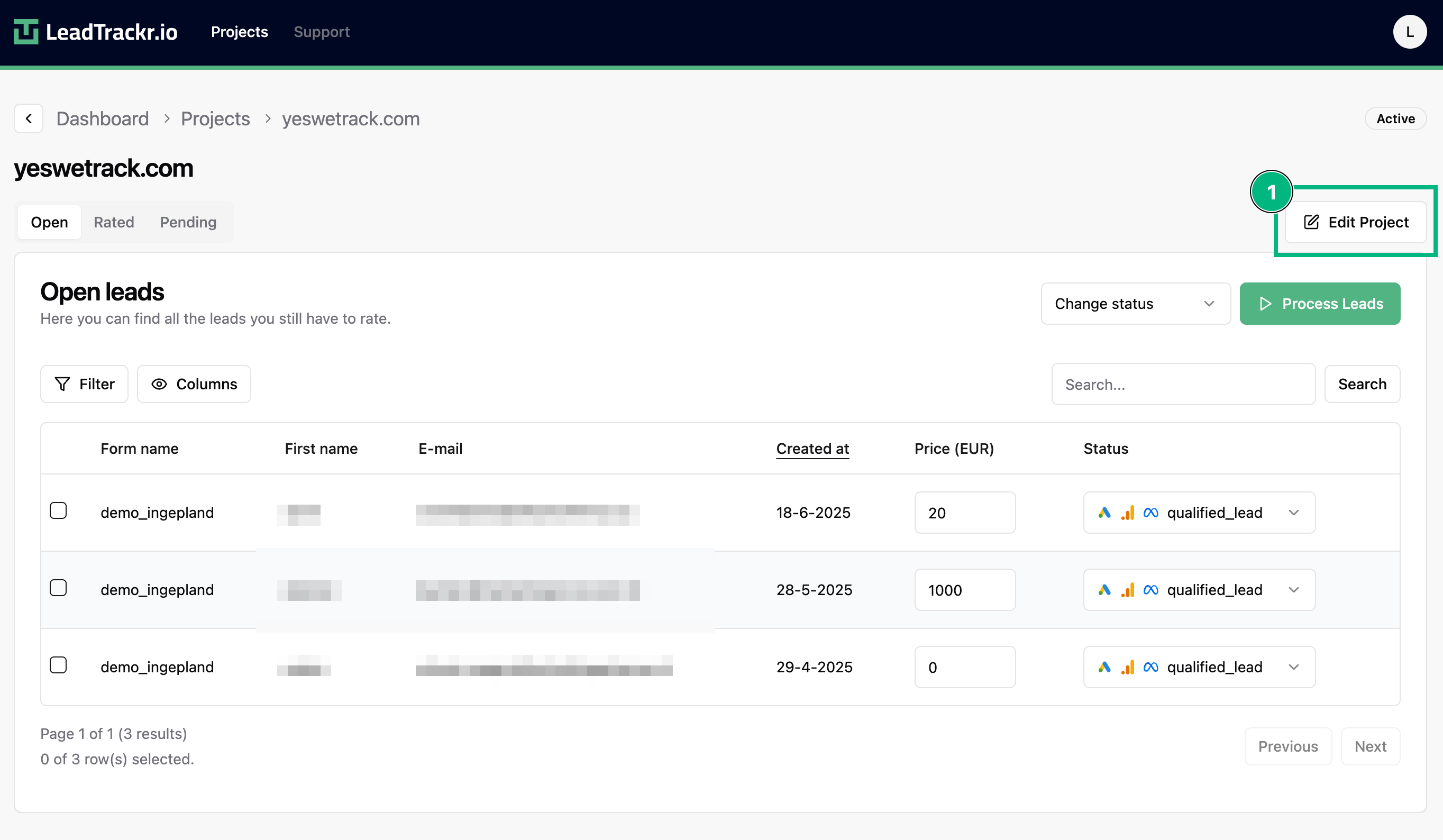
1. Go to the project where you want to add a member.
2. Click **Edit Project** in the top-right corner.
 ## Step 2: Add a Member
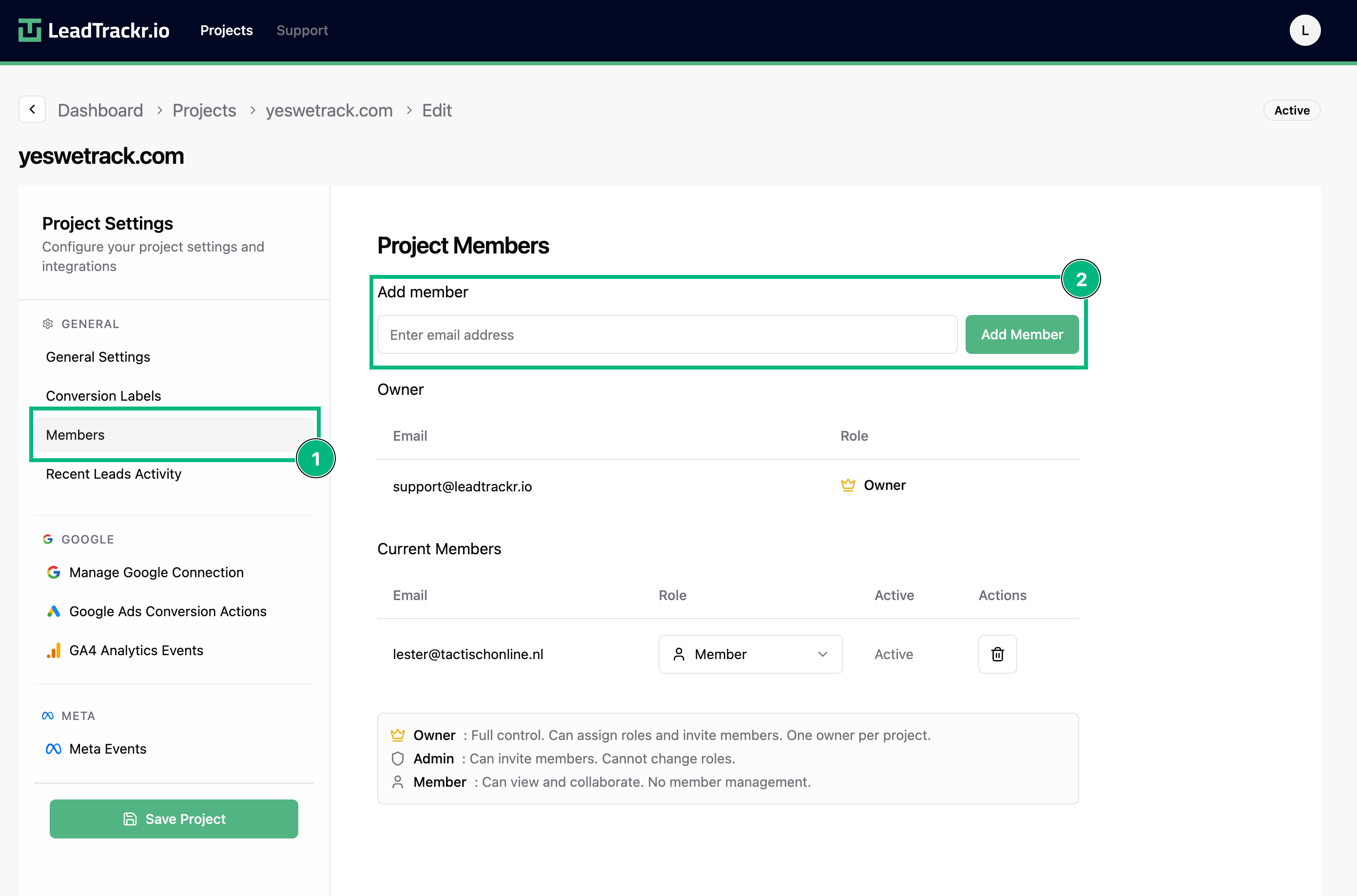
1. Navigate to the **Members** section in the sidebar.
2. Enter the email address of the person you want to invite.
3. Click **Add**.
They'll receive an invitation to join the project and can immediately start collaborating once they accept.
## Step 2: Add a Member
1. Navigate to the **Members** section in the sidebar.
2. Enter the email address of the person you want to invite.
3. Click **Add**.
They'll receive an invitation to join the project and can immediately start collaborating once they accept.
 ## That's It!
You've now successfully added a team member to your project.
Want to remove or change a member's access later? You can manage that anytime from the same **Members** section.
## That's It!
You've now successfully added a team member to your project.
Want to remove or change a member's access later? You can manage that anytime from the same **Members** section.